In the Meraki dashboard, navigate to Organization > Configure > API & webhooks

Under the API keys and access tab, Click on “Generate API Key”

Note: You can generate a maximum of 2 API Keys.
Copy and store the API key. Select “I have stored my new API key” and Click “Done”

Click the Menu icon and Navigate to Setup > Wireless Networks > Connect via Meraki API key


Click on “Connect”

Paste the stored API key and Click on “Connect”

After a successful synchronization with Meraki, the connection status displays as active.

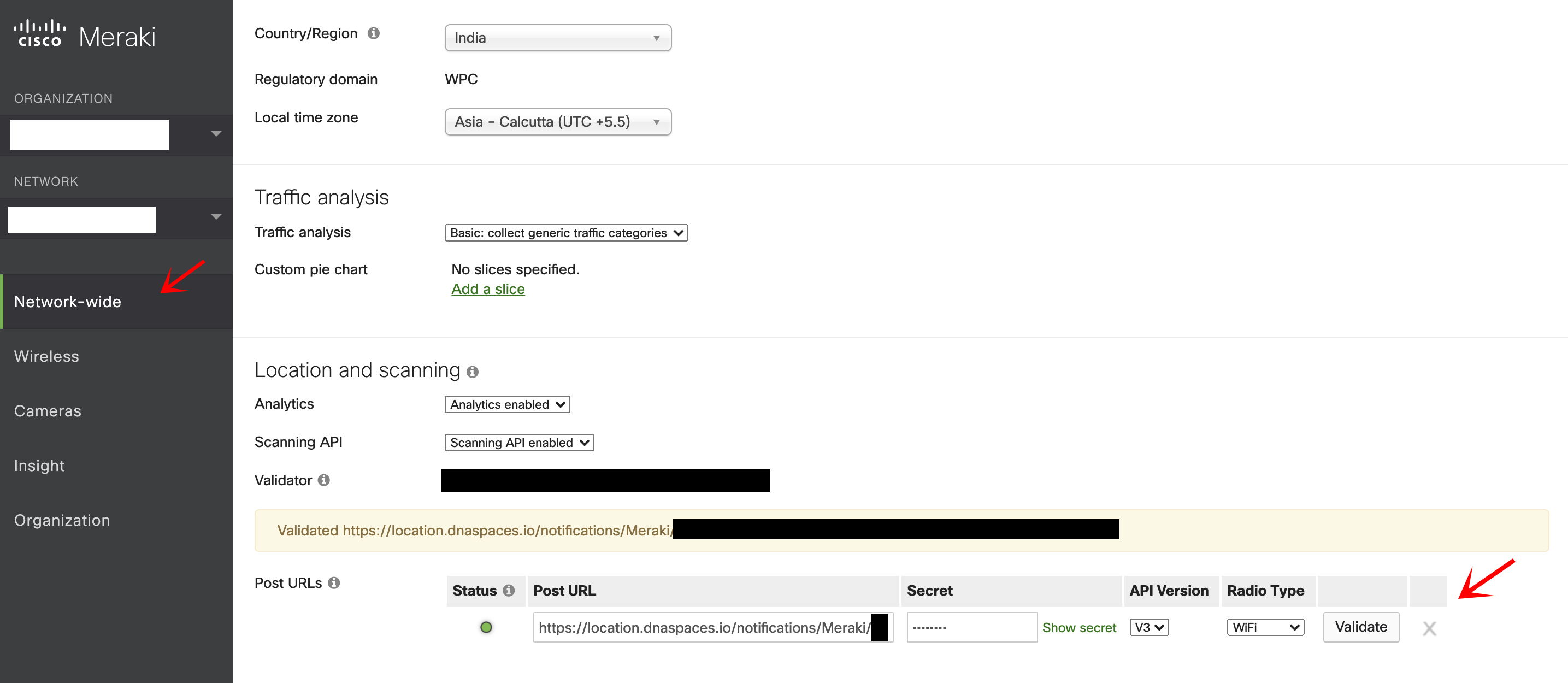
From the Configure Meraki scanning API area, copy the values for Post URL and Secret Key.

Navigate to Network-Wide > Configure > General

Paste the following Post URL :
https://location.dnaspaces.io/notifications/Meraki/{yourdnaspacesname}/{url_validator}
Customers in Europe: https://location.dnaspaces.eu/notifications/Meraki/{yourdnaspacesname}/{url_validator}
Customers in Singapore:
https://location.ciscospaces.sg/notifications/Meraki/spacessgescaltionteam/{URLValidator}
- where, {yourdnaspacesname) is a default customer name (all in small case excluding any special characters such as “-” , “_” , “.” etc) of your Cisco Spaces account (You can find this as the top most element in “Location Hierarchy” section in Cisco Spaces
- {url_validator} (you can find the URL validator in “Location and Scanning” section in your Meraki dashboard) parameters referred from the meraki dashboard.
Secret : {yourdnaspacesname} API Version : 3.0
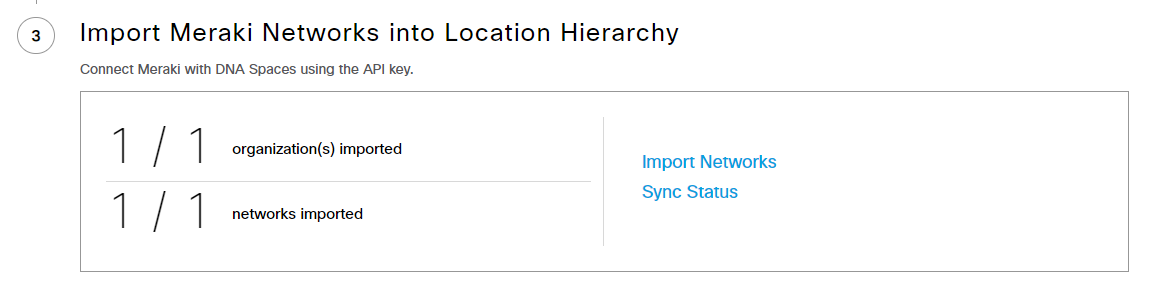
Login into Cisco Spaces account and Import networks
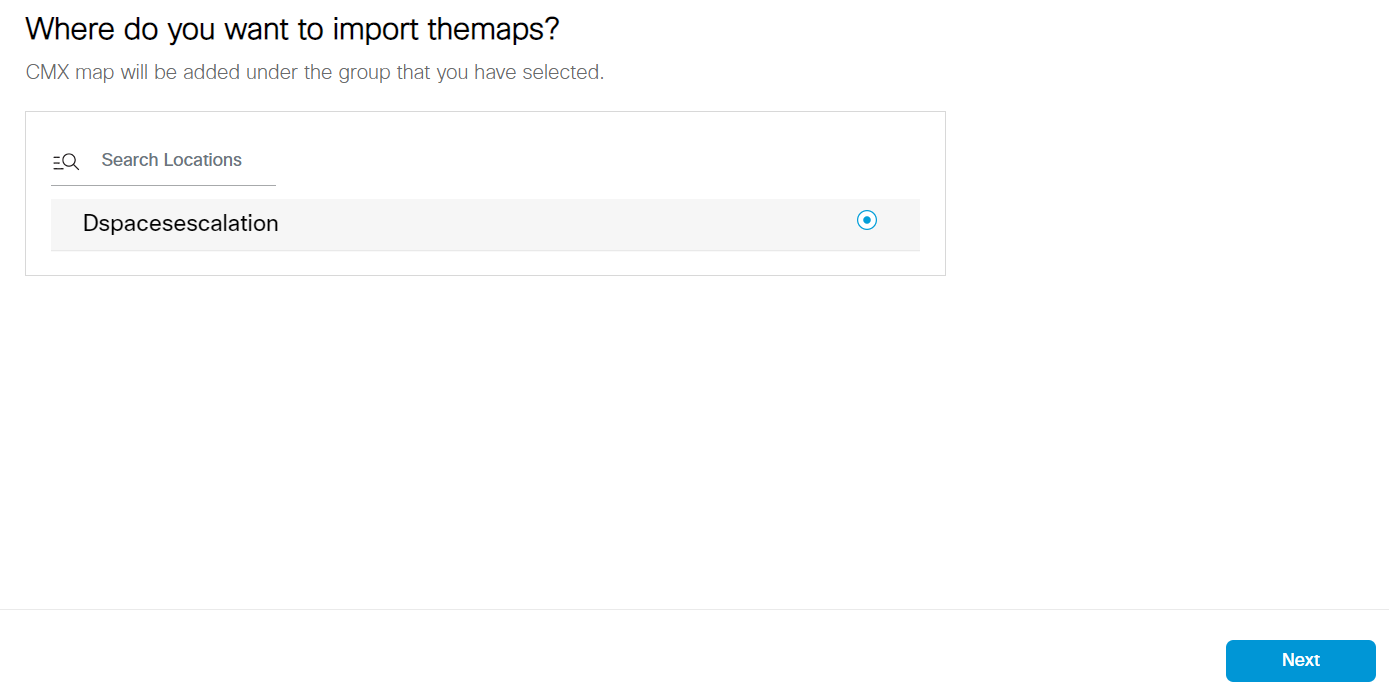
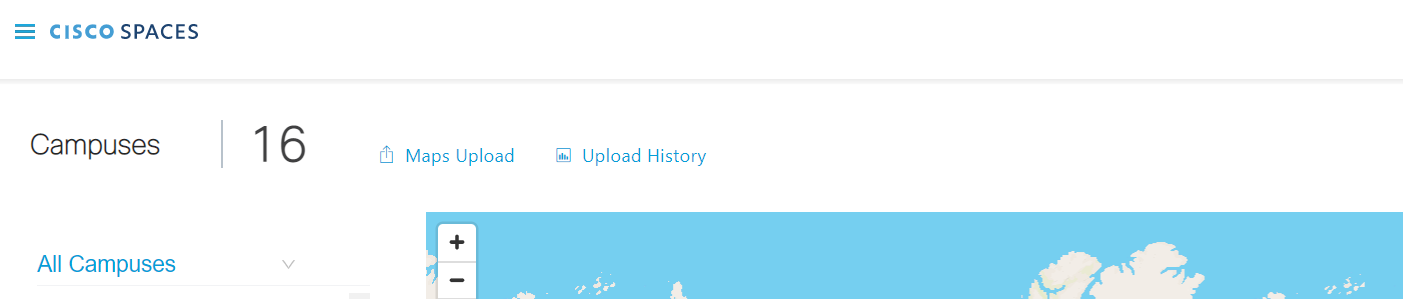
Note: After adding Meraki networks into the Location Hierarchy, any maps that have been created within your Meraki dashboard will automatically be imported into the Cisco Spaces Map Services. You can validate that the import was successful by navigating to the Map Service and checking the “Upload History”.
Menu > Setup > Map Service > Upload History