
Your mission dossier has landed. Briefing starts on Nov 5. Sign up for the Fall Digital Event
Migrate Spaces Connector 2.x to Connector 3 Click here >>
For workplaces, healthcare facilities, campuses, and venues, Indoor Navigation reduces confusion inside the building, improves the guest and employee experience, and helps teams make large spaces easier to understand and use.

Guide people from arrival to destination
Value Delivered: a more confident, self-service arrival experience.
Useful to: workplace, healthcare, campus, and venue teams.

Reduce staff interruptions and wayfinding burden
Value Delivered: operational relief for teams that manage busy, distributed spaces.
Useful to: network, facilities, and deployment teams.

Improve the experience in complex buildings
Value Delivered: less friction in spaces that are difficult to understand at first glance.
Useful to: wireless, IoT, and deployment teams.

Create a more welcoming, accessible space
Value Delivered: a better first impression and a more usable indoor environment.
Useful to: customer admins, Cisco Spaces deployment teams, and facilities teams.
Area | Prerequisites |
Wireless Infrastructure | Please refer to the AP Compatibility Matrix guide for compatible models |
AP Deployment Density | 1 AP per 1000 sq.ft |
1 AP per > 1,000 <= 1,800 sq.ft. deployed with battery beacons | |
APs are within 8-15m of each other | |
AP Placement | APs accurately placed on network maps Catalyst:
|
Spaces Infrastructure | Cisco Spaces Connector 3.2 Virtual Machine (VM) with internet access to Spaces Cloud endpoints (firewall allow list and proxy requirements) |
Enable IoT Services – Advanced BLE Gateway enabled BLE Mode: BLE Transmit Mode (iBeacon) enabled (minimum requirement) Dual Scan and Transmit Mode (recommended for Indoor Wayfinding + additional Cisco Spaces BLE Gateway functionality) | |
Provide accurate CAD .dwg files for each floor in the EFT location (Best Practices – including walls, furniture, room labels/IDs, and other recognizable points of interest) | |
Deploy Cisco Spaces digital signage application on a Cisco Webex Board Pro / Pro 2 in the building lobby or central location to access wayfinding QR codes (firewall allow list requirements). |
To find a rough estimate of the AP density for a given floor, the total number of AP’s on a given floor can be divided by the total square feet for that floor. From here it may provide an early indication if additional battery powered beacons need to supplement any gaps in the deployment that would lead to a suboptimal wayfinding experience.
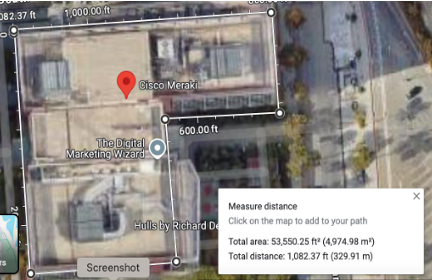
There are a couple ways to assess the square footage of a floor. Here are two methods to get estimates.
Google Maps is another alternative to estimate the square footage. Here are the steps for the floor size estimation. Find my building size
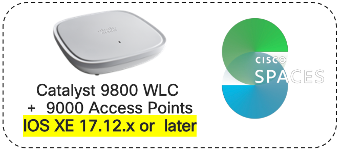
AP’s needs to be accurately placed on network maps.
WLC managed AP’s:
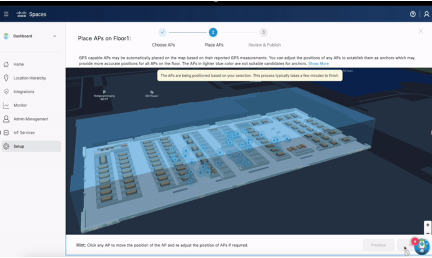
AP Auto Locate
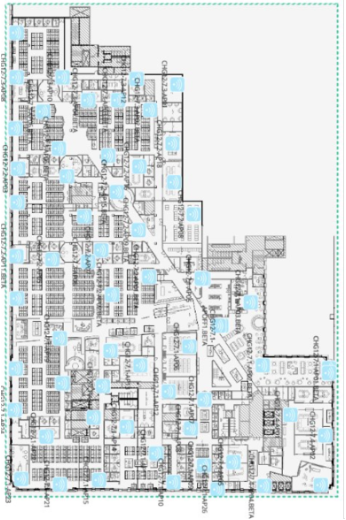
AP Placement on Catalyst Center
A 4 or more (minimum of 3) GPS Markers are required, and each should be placed at least 20 meters apart from each other. This is to ensure proper scaling and orientation of Catalyst Center network maps when aligning with Digital Maps on Cisco Spaces.
More details on placing GPS markers can be found in the Spaces OS runbook .
BLE Beacon Guidance
| Beacon Density | Typical Guidance | Additional Battery BLE Beacon Needed |
|---|---|---|
| High density |
1 AP beacon / 700–1500 sq ft (65–140 sq m) Avg 1 per 1000 sq ft |
Minimum or few beacons needed to cover gaps |
| Medium density |
1 AP beacon / 1500–3000 sq ft (140–278 sq m) Avg 1 per 1800 sq ft |
Needs additional beacons |
Digital Map Processing
Digital maps are a necessary component for the wayfinding experience. It starts with a Digital Kiosk where the users will review the 3D visualized map of a floor space. Once they locate the destination on the Digital Map then they can select the option to get directions where a QR code will be presented. This is why it is necessary to have Digital Maps within the Cisco Spaces dashboard.
The Spaces OS runbook goes through setup and best practices for preparing the CAD files for processing the Digital Maps. If Digital Maps have not been created yet, please refer to the Spaces OS runbook.
Digital Kiosk Readiness
Digital kiosk readiness is provided in great detail in the Spaces Smart Workspaces runbook . Please review that runbook for device compatibility and URLs that need to be reached for communication between the kiosk device and the Spaces cloud.

Deploying the Cisco Spaces Indoor Navigation solution involves several key steps. Starting with setting up the WebEx Collaboration Boards to serve as the initial touchpoints for the navigation experience. Next, configure the BLE radios to transmit the beacons necessary for accurate positioning calculations. Afterward, review the planned routes to ensure they offer optimal paths throughout the building. Finally, conduct a thorough verification of the entire navigation experience.
Below is a RACI diagram of the tasks detailed in subsequent subsections. This will provide a quick reference as to who is responsible for which tasks while Indoor Navigation is under Limited Availability.
| Task | Customer (C) | Deployment Team (DT) |
|---|---|---|
|
1.
Pre-req readiness validation (IOT service, SW version, AP density and placement criteria, CAD file and maps) etc. |
R/A | I |
|
2.
Configure the BLE radios |
I | R/A |
|
3.
Path drawing review |
I | R/A |
|
4.
Enable feature flags for kiosk |
I | R/A |
|
5.
Configure the digital kiosk |
R/A | C |
|
6.
Onsite validation |
I | R/A |
Legend:
R (Responsible) – The role that does the work to complete the task.
A (Accountable) – The role ultimately answerable for the task’s completion.
C (Consulted) – The role providing input or expertise.
I (Informed) – The role kept up to date on progress.
Configuring the digital kiosk is detailed in the Spaces Smart Workspaces runbook . Please refer to this documentation for configuration details.
How to Configure BLE Services in Cisco Spaces
With accurate placement of AP’s on the network map and geo-alignment with the fully geo-referenced Cisco Spaces Digital Maps Pro, the Cisco Spaces iOS App Clip can render a map + AI drawn paths + calculate its own location on-device.
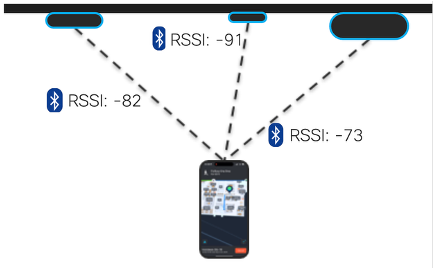
Indoor wayfinding uses BLE on AP’s (or additional battery beacons), and those BLE beacons need to be transmitting the signal, which can be captured by Mobile application to calculate its own position on the map.
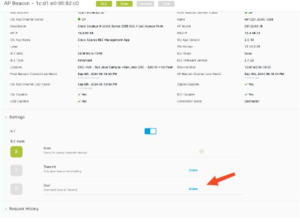
The steps for configuring the BLE radios is as follows:

b. Dual Scan and Transmit Mode (recommended for Indoor Wayfinding + additional Cisco Spaces BLE Gateway functionality). Detailed steps are here: Configuring AP as a Beacon in Dual mode
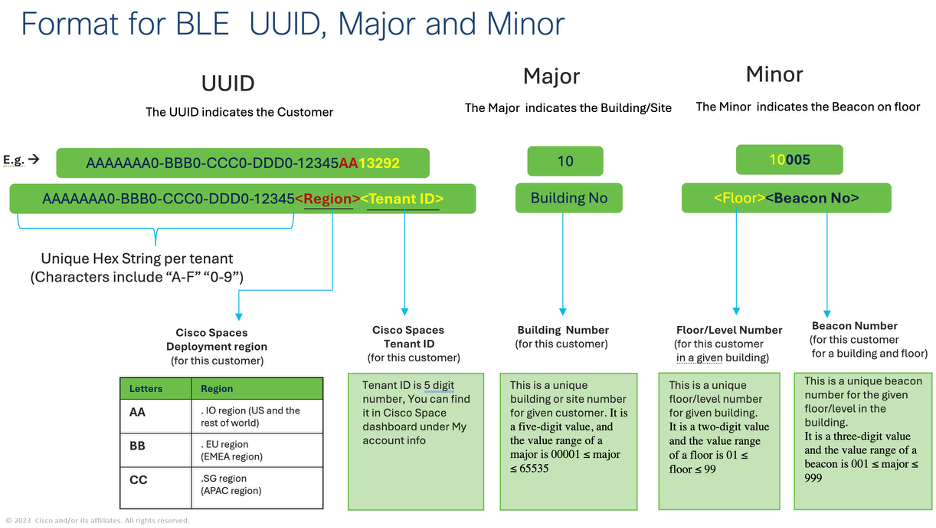
BLE Formatting Schema
A naming convention for the BLE beacons is to be used. The format for the UUID, major, and minor values that leverage the Spaces tenant ID, a building enumeration, the floor number, and a beacon enumeration. See below for the schema.
Recommended BLE Configuration
A path drawing review will be performed with the specified point of contact from the Cisco Spaces team. Verification of the path drawing to various rooms on the floor are taking the appropriate route is performed in this review. If any edits are needed, due to consideration needed for glass walls, furniture, or areas to be avoided, for any of the routes they can be made at this time.
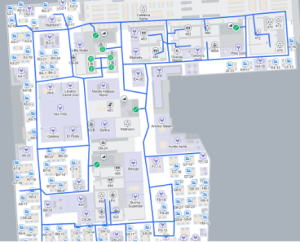
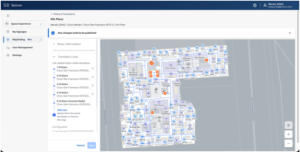
Space Experience > Wayfinding > Path & Transitions – Stairs example connecting all floors
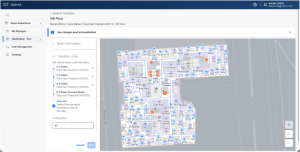
Space Experience > Wayfinding > Path & Transitions – Stairs example excluding some floors
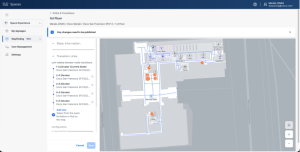
Space Experience > Wayfinding > Path & Transitions – Elevators example connecting all floors
On-Site Beacon Validation and Accuracy Testing
After all of the prerequisites and setup has been completed the last part is the walk test and accuracy testing. If deployment assistance has already been prearranged then an engineer from the Cisco Spaces team will be scheduled to come onsite to perform these activities.
Walk Test
The walk test is done to cover several items related to the BLE beacons in the environment: Verify beacons received accurately. Verify adequate beacon coverage. The walk test uses specific beacon recording software that is downloaded to a mobile device. A predetermined route is provided with start and end indicators for the specified floor.
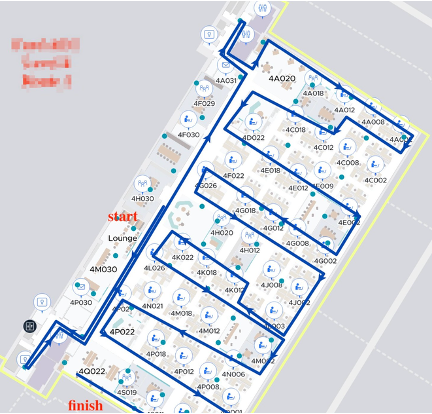
Walk test path example
After the walk test is concluded the file will be uploaded to the cloud for review. The Cisco Spaces team will review the results within approximately one week and provide a report. The report may be accompanied with any recommendations for gaps found in the coverage, unless the deployment involves an onsite engineer from Cisco Spaces. In which case, such items will be assessed at that time.
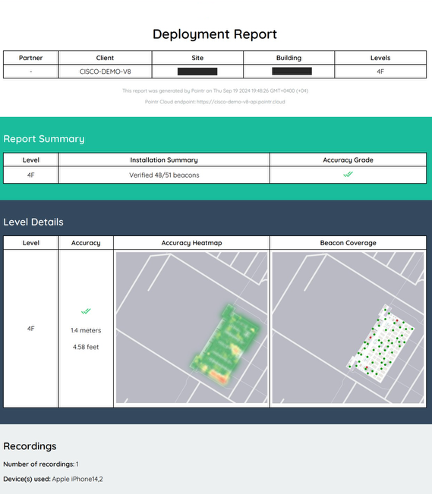
Example walk test report
Accuracy Testing
If a Cisco Spaces engineer is dispatched onsite accuracy testing will be performed by testing various routes on the floor to ensure proper accuracy of the blue dot on the mobile device. If any gaps or issues are found then recommendations will be provided and/or made to ensure a positive wayfinding experience.
How to Experience Indoor Navigation
Indoor navigation is experienced on a mobile device to give someone turn-by-turn directions within a building. Currently there is a disparity in the mobile experience between iPhone and Android due to limitations with accessing parts of the hardware. An Android application is currently in development to allow for parity in the wayfinding experience. Illustrations between the current experience of the two platforms are contained below.
| iPhone | Android (web) | Android (app) | |
|---|---|---|---|
| 1. While at the kiosk, select a meeting room on the floor. Select the Get Directions button. | 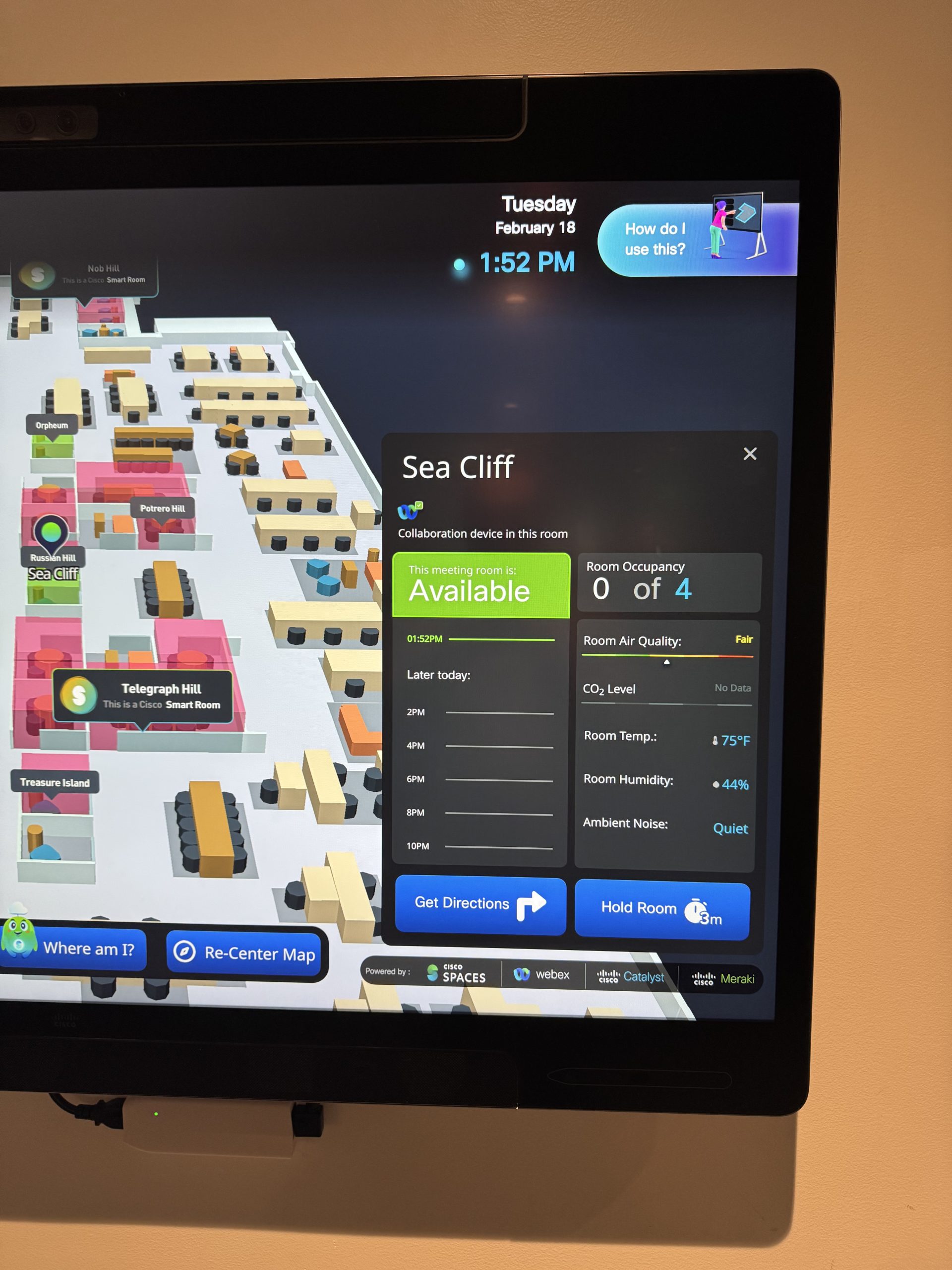 |
||
| 2. A QR code will appear in place of the Room Details. | 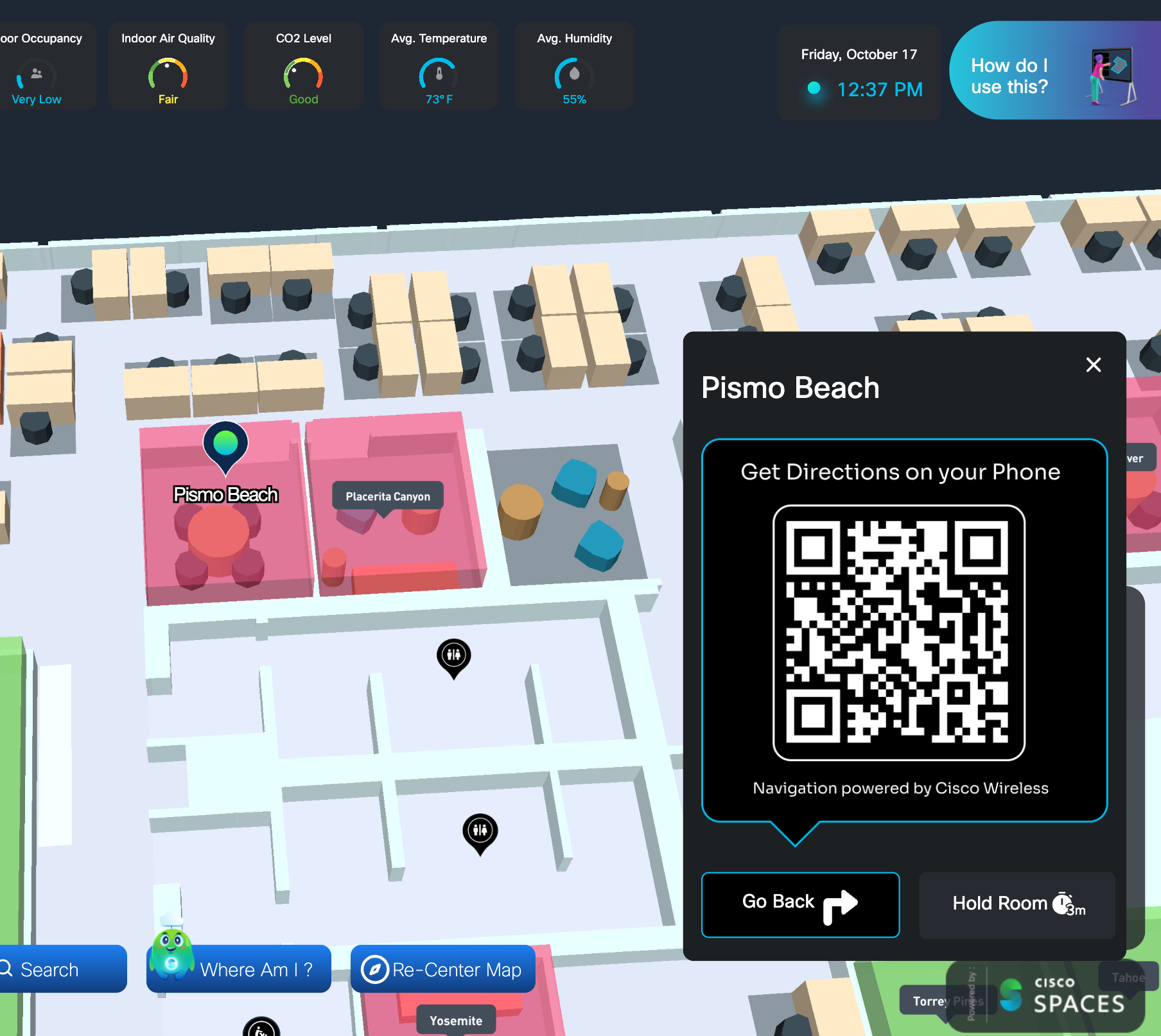 |
||
| 3. Open a QR reader or camera app to scan the QR code, then select the URL “chip” presented in yellow. | 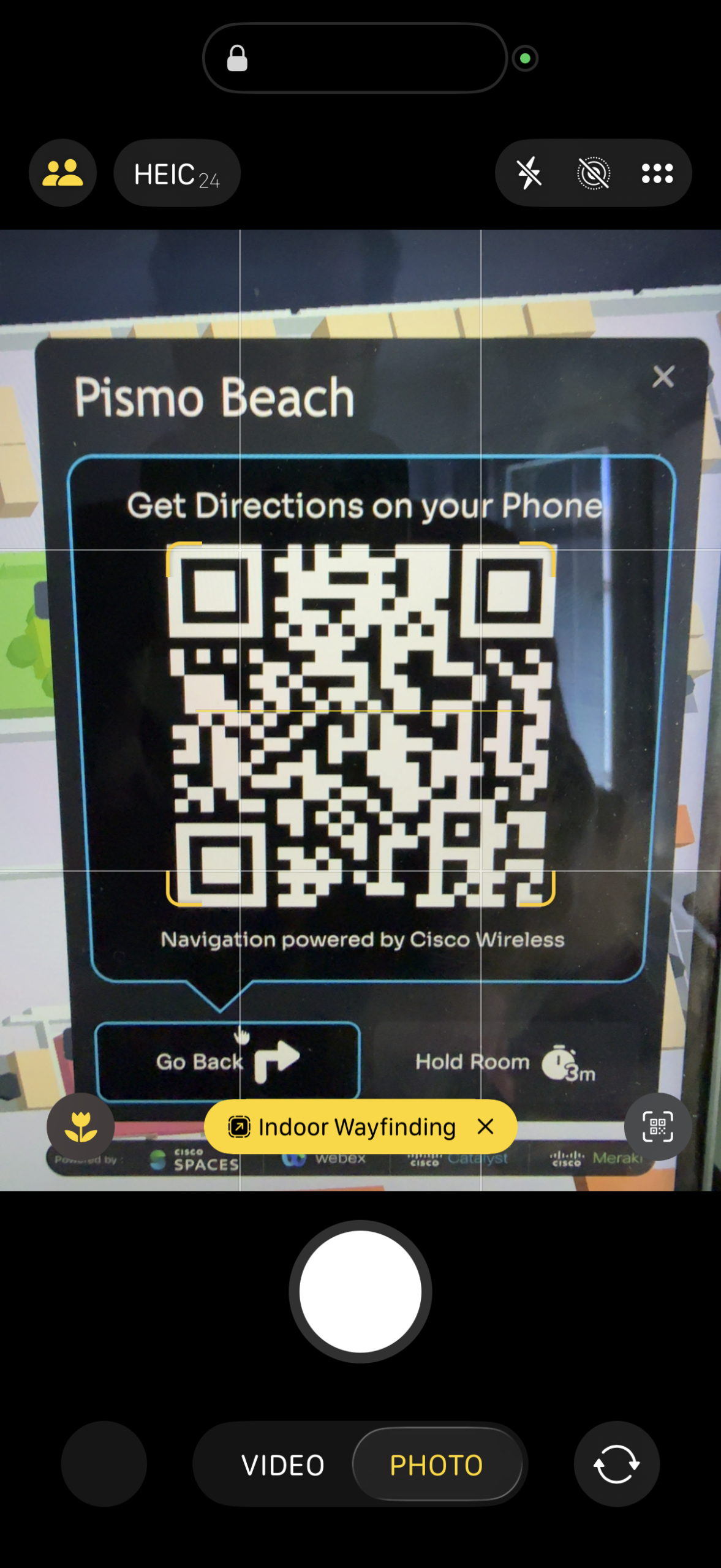 |
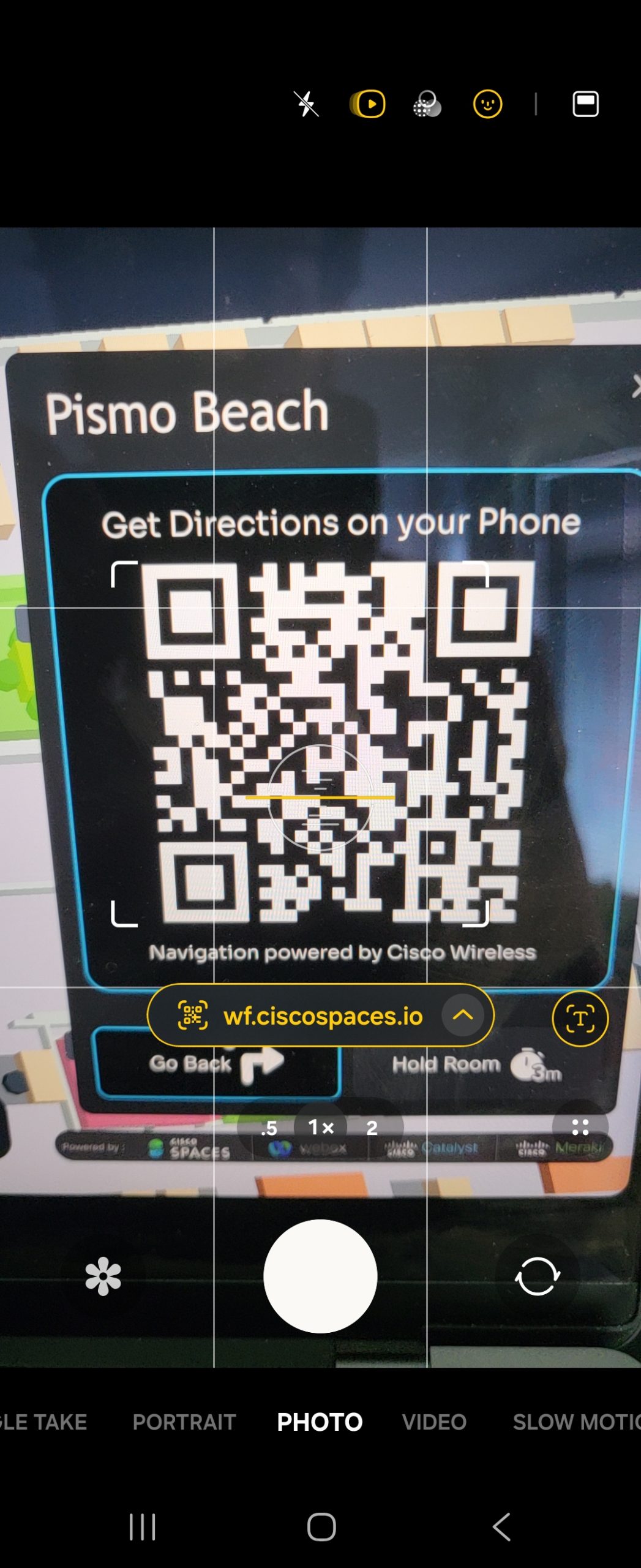 |
|
| 4. For iPhone, an App Clip dialog will appear from the bottom of the screen. Select Open to proceed. | 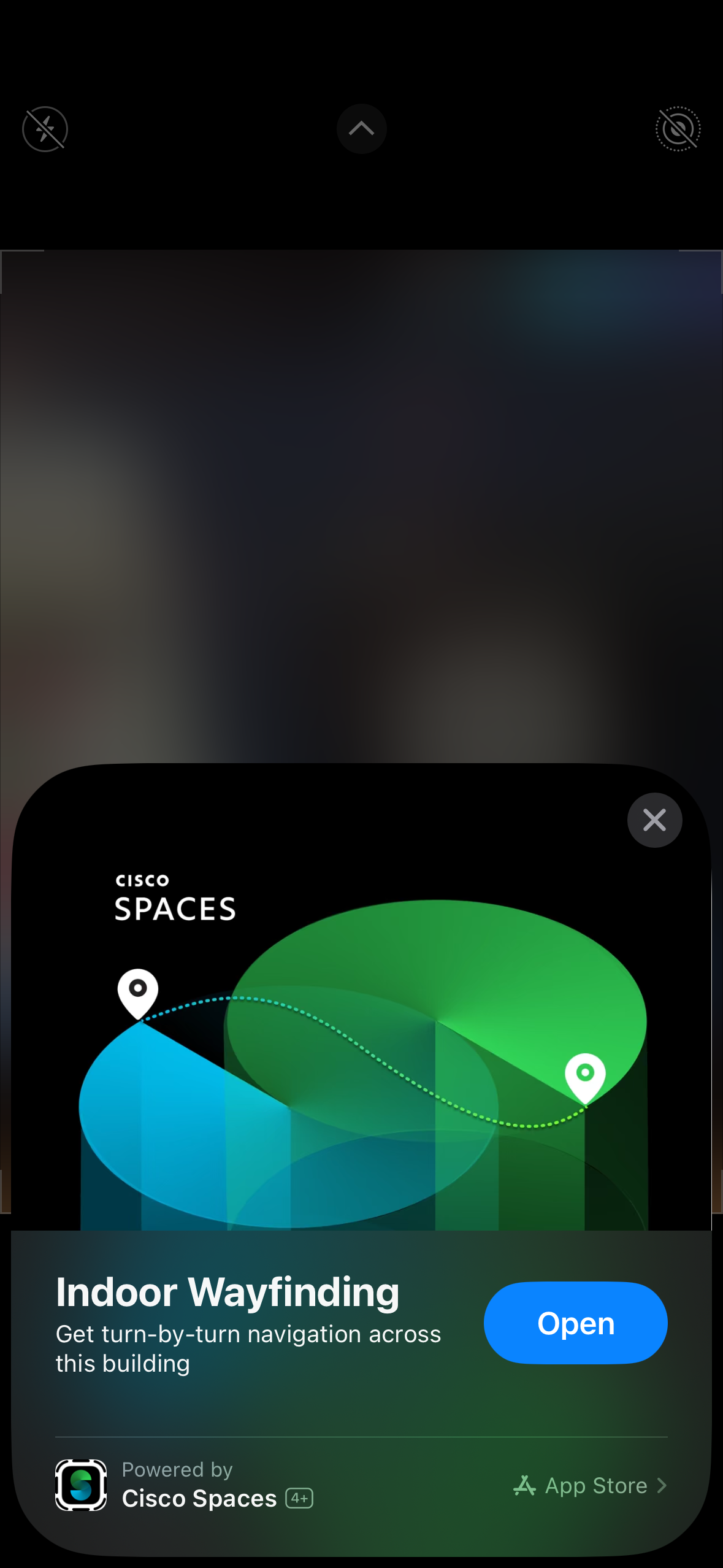 |
N/A | |
| 5. If not done previously, the iOS phone will ask for Cisco Spaces to use the phone’s location. Select Allow While Using Until Tomorrow (preferable) or Allow Once to proceed with turn-by-turn navigation. | 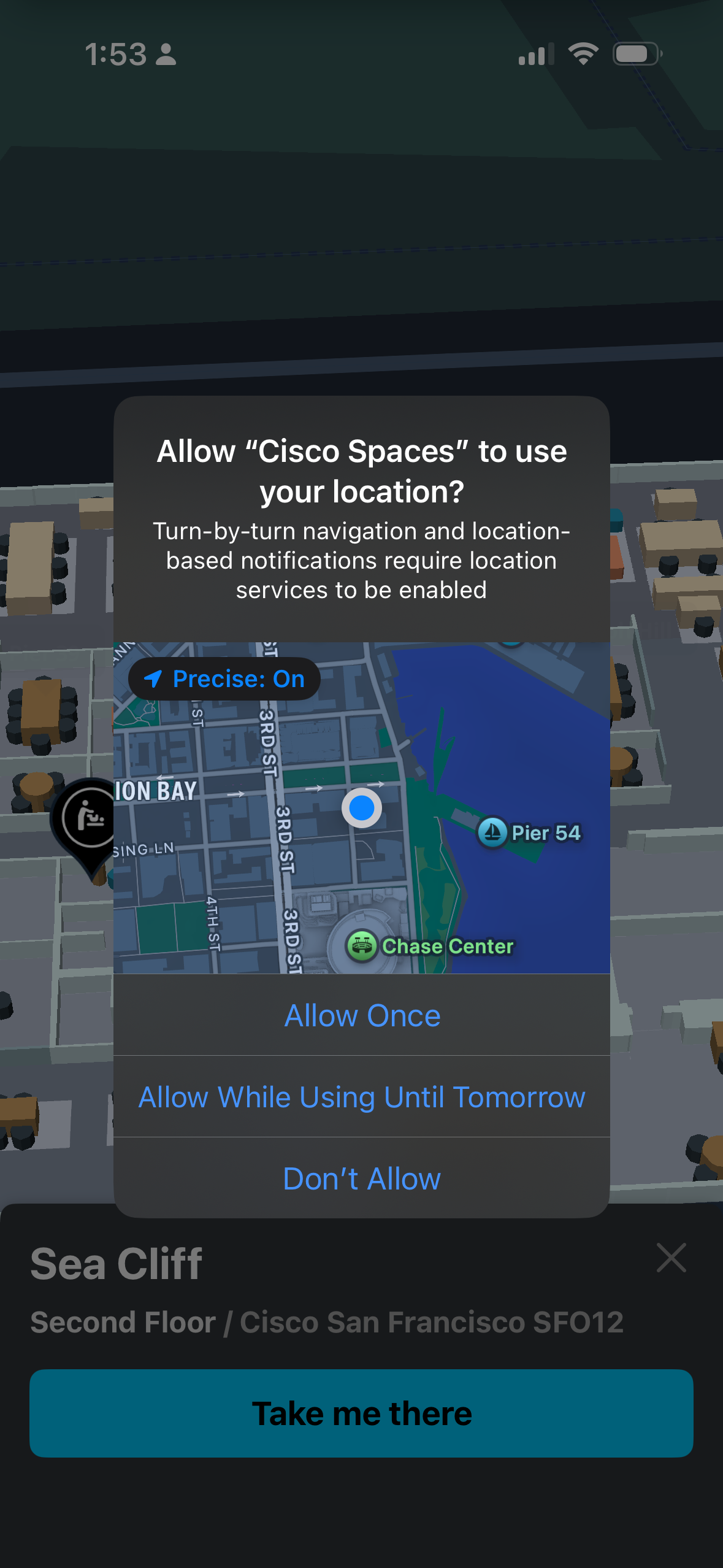 |
N/A | |
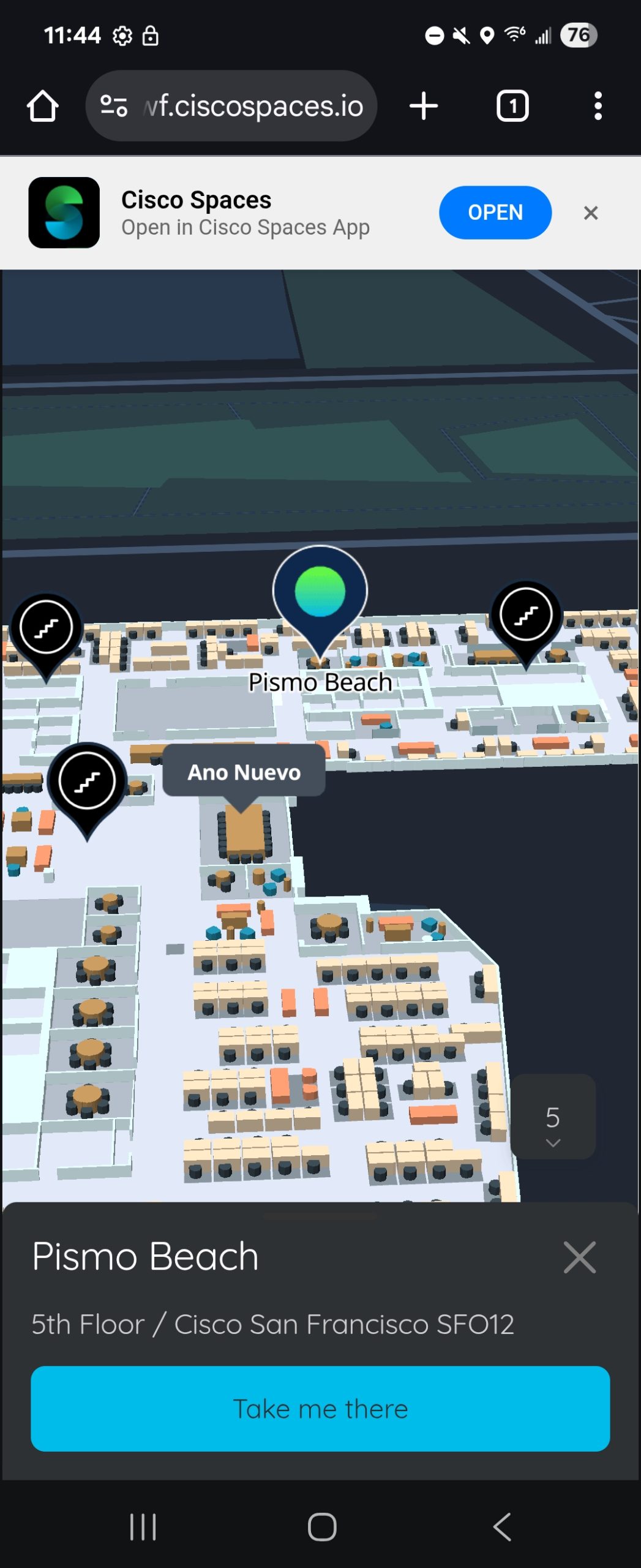
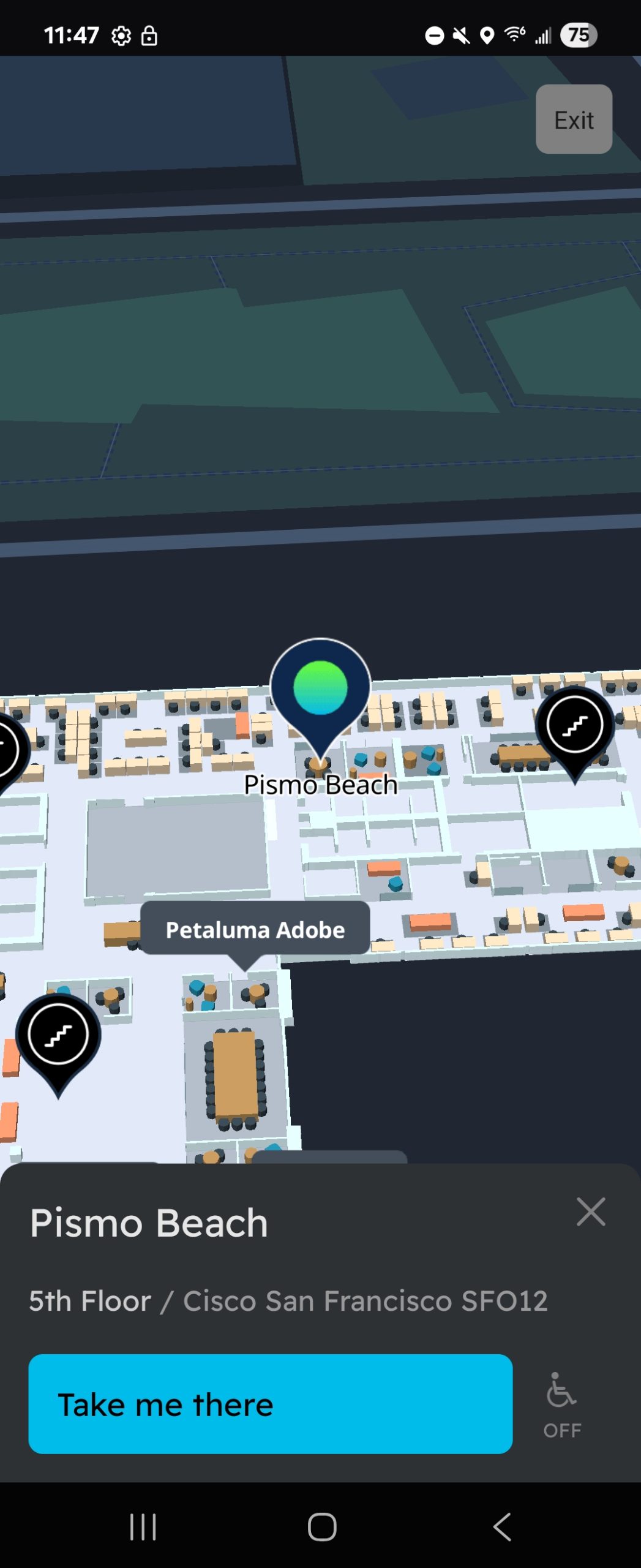
| 6.
The destination will be shown on the 3D AI Digital Map.
Select Take me there to begin the journey.
Note:
the Android web page will show a banner at the top of the
browser that will lead to Google Play Store to download
the Android app.
Note:
if previously downloaded, the Android app will open
automatically to the scanned destination to begin navigation. |
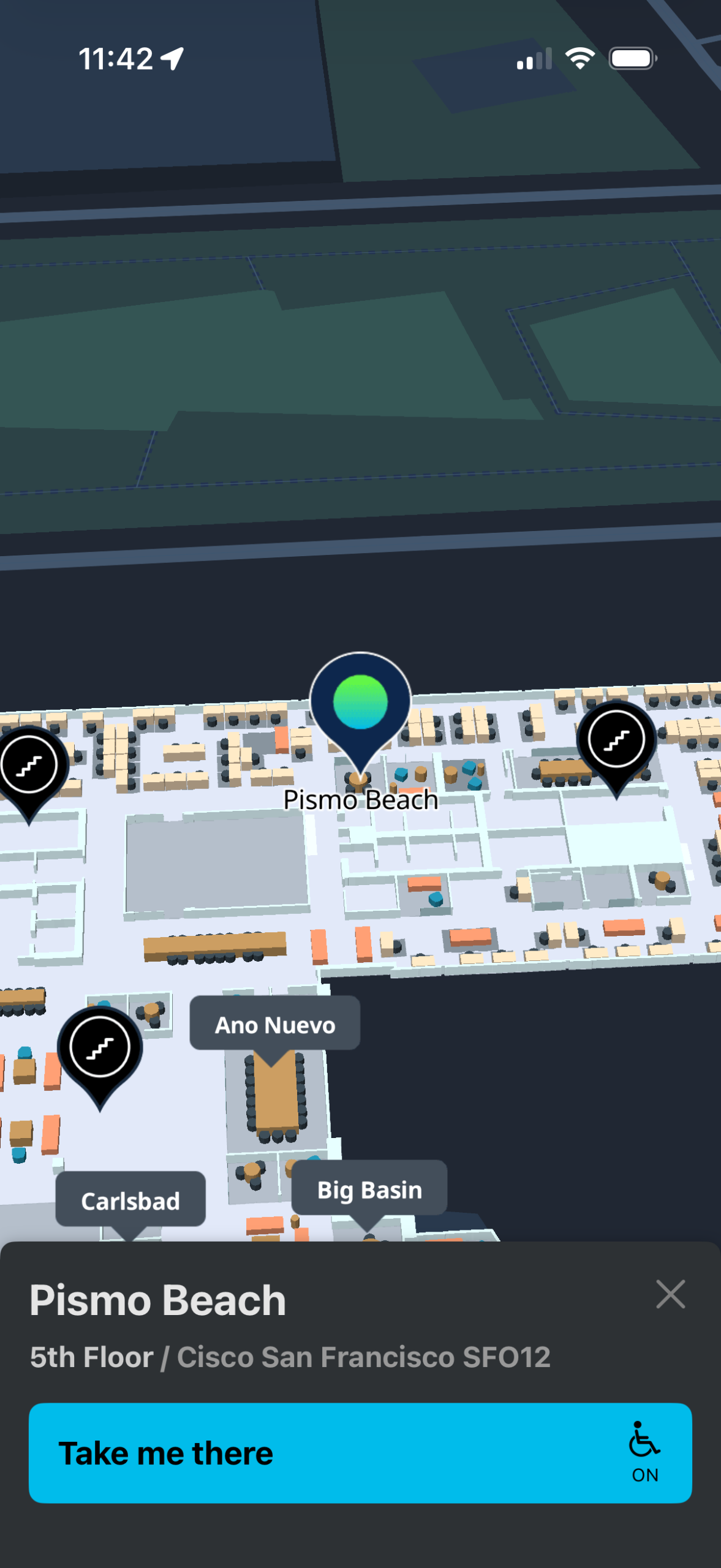 |
 |
 |
| 7.
On Android (web), search for and choose a
Starting point. Then, select
Show Directions to view an animated path
between them.
Note:
on iOS, at any time, search for and choose a new destination,
but the Starting point is always the phone’s
live location.
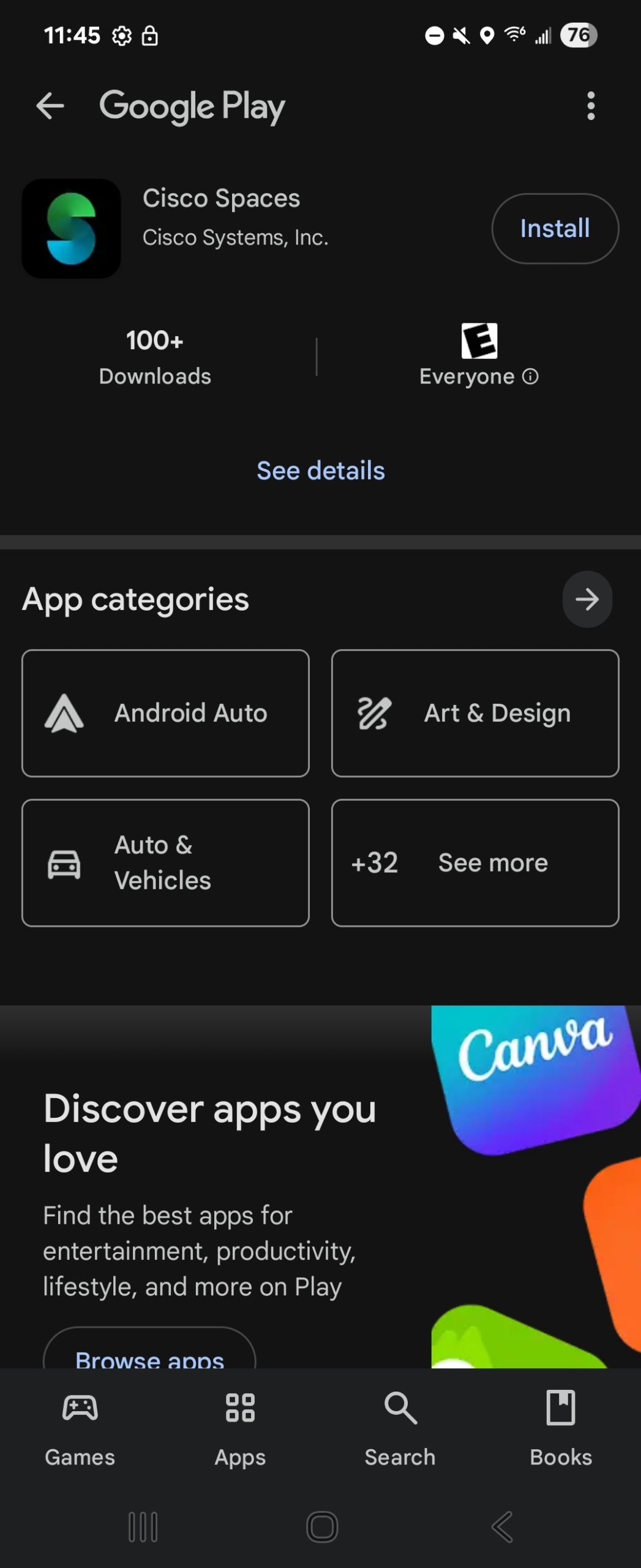
Note:
on Android, clicking the blue Open button
on the banner opens Cisco Spaces app listing in the Google
Play Store. Click Install to download and
install the Cisco Spaces app, then Open to
launch the app. |
N/A | 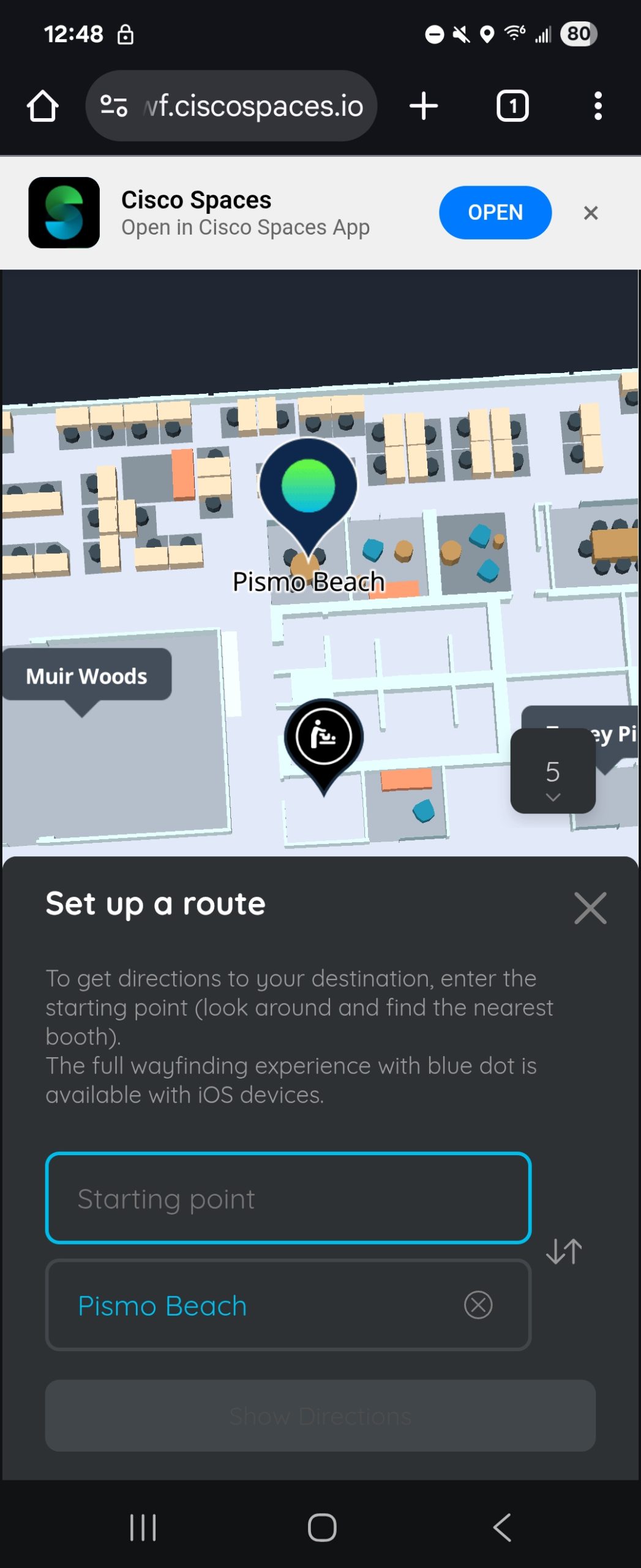 |
 |
| 8.
If not done previously, the Android phone will ask for Cisco
Spaces to use the phone’s location. Select
Allow only while using the app (preferable)
or Ask every time to proceed with turn-by-turn
navigation.
Note:
where applicable, Precise Location is
preferred for outdoor GPS navigation and Transitions between
buildings. |
N/A | N/A | 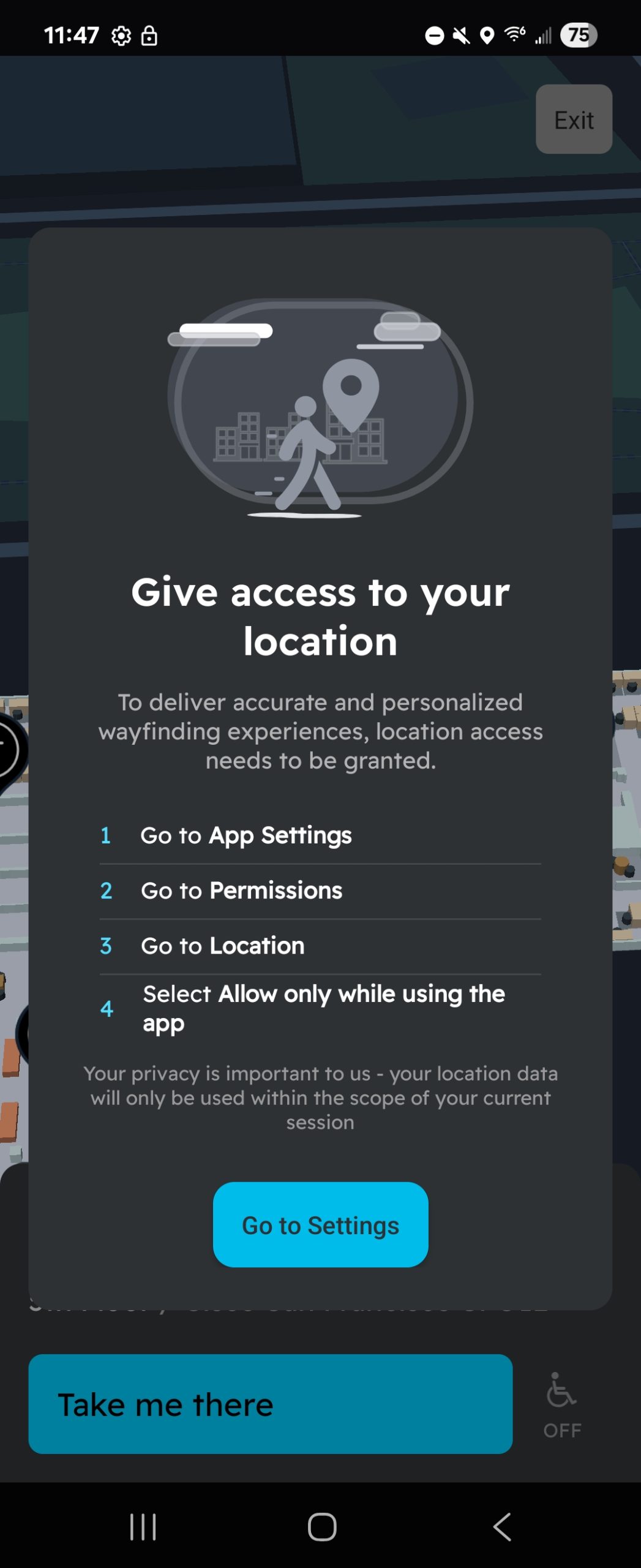 |
| 9. The navigation will begin and provide instructions on each step of the journey. A path (shortest route) will be drawn on the map from the phone’s live location to the destination. On Android, the shortest route between the Starting point and Destination will appear as an animated line. | 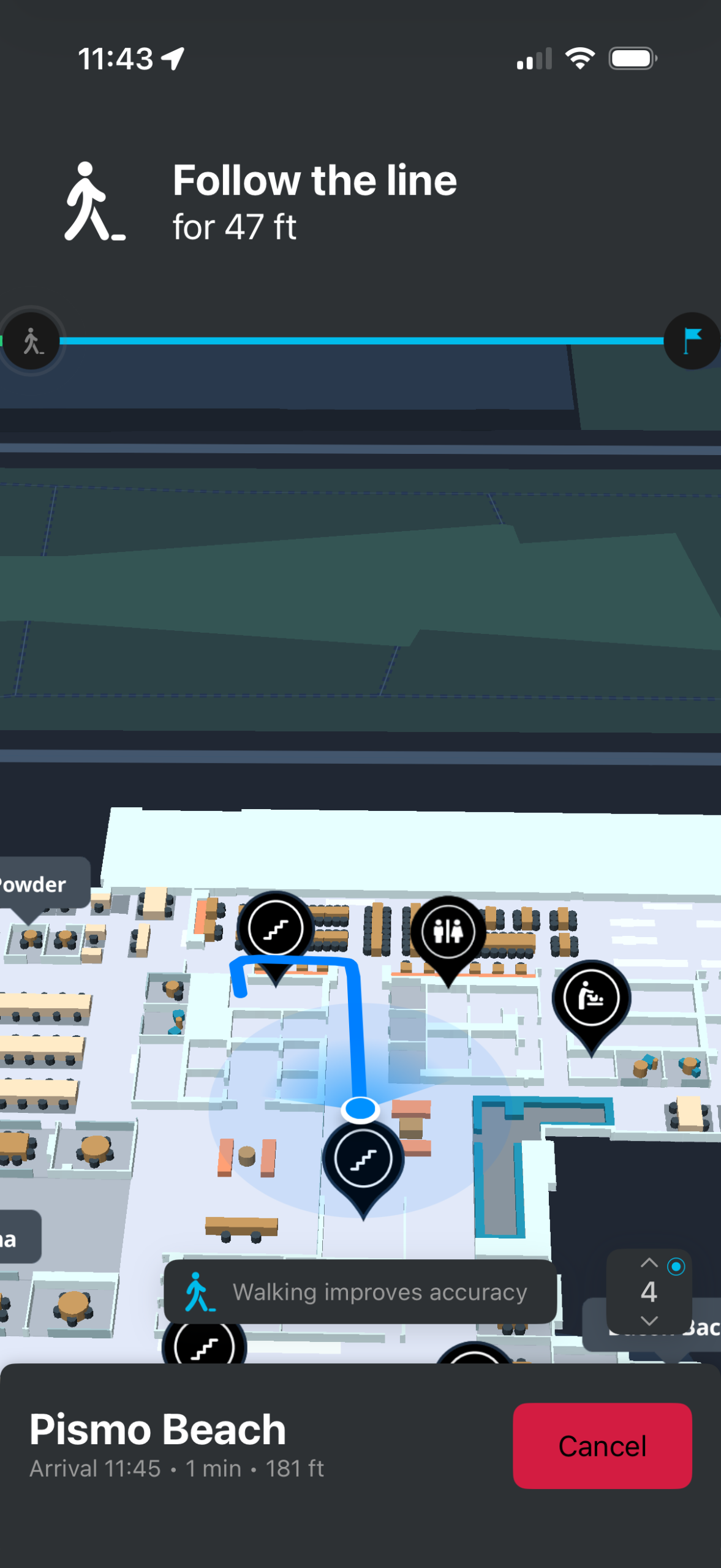 |
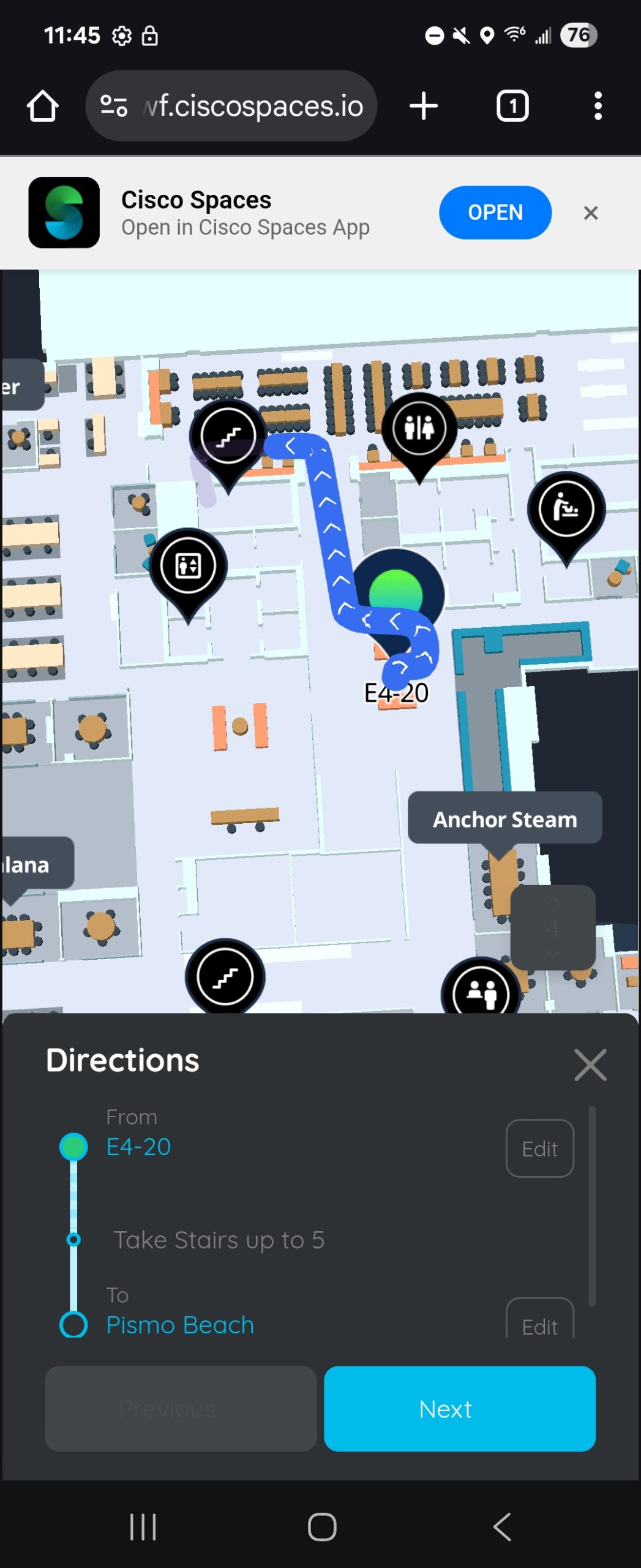 |
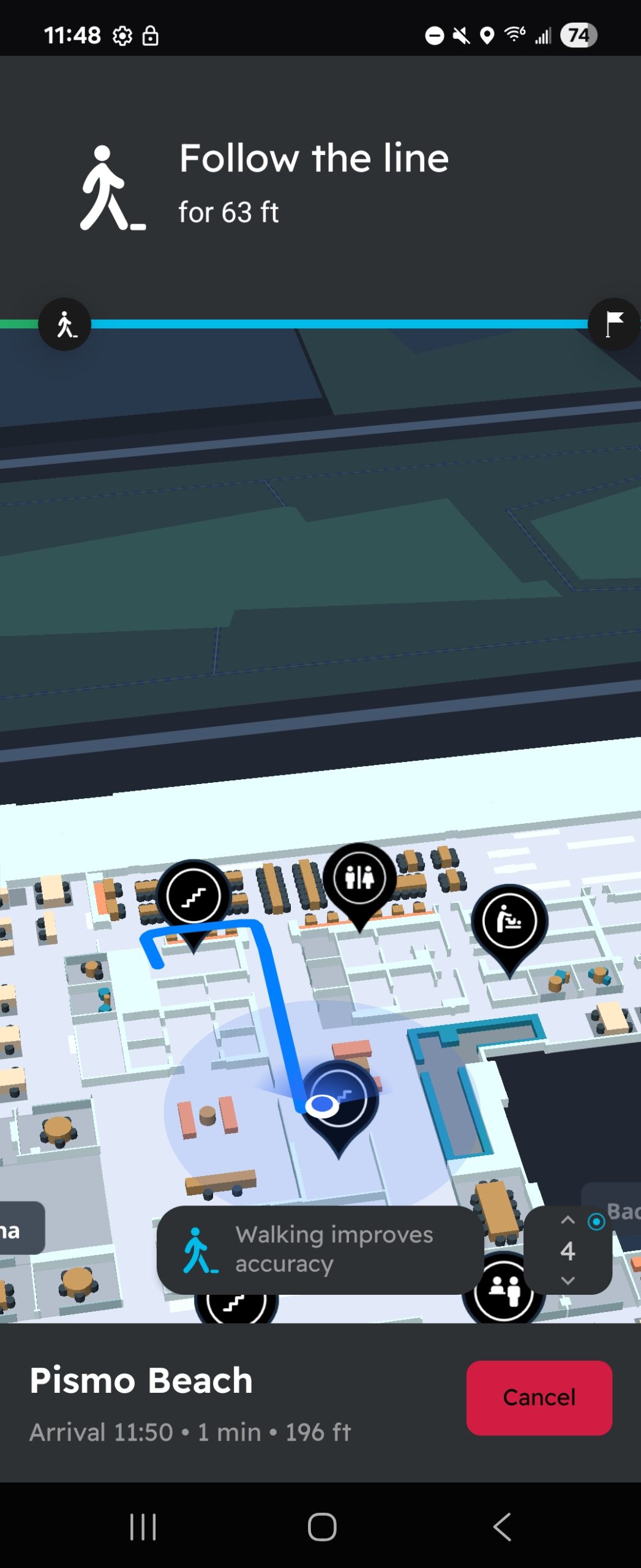 |
| 10. On arrival the iOS App Clip and Android app will show a message that the journey has concluded. | N/A | ||
Enabling BLE has minimal interference with Wi-Fi
BLE advertisement is transmitted on 3 channels – 1MHz wide whereas Wi-Fi has a 22 MHz channel bandwidth in 2.4GHz frequency range
If any single advertising channel for BLE is blocked, the other channels are likely to be free since they’re separated by quite a few MHz of bandwidth
BLE channels are strategically placed to avoid interference from WiFi channels Ch1, 6, and 11
The Tx power for indoor navigation is between -9dBm to 0dBm for BLE whereas WiFi transmits at ~20dBm
Low Tx powers of BLE results in insignificant intereference with Wi-Fi. On the other hand, BLE avoids interference by hopping between multiple channels placed between Wi-Fi channels.
There are several factors that affect Campus Wayfinding and decrease time to process CAD files:
Locations in the Location Hierarchy MUST be grouped under the same common level above the Building level.
A group of Buildings (i.e. Campus) MUST fit within a 100km² area (roughly 10km x 10km). To be safe, the distance between the 2 furthest buildings must be no more than 8km.
Geo-alignment on the world map is essential. Elements included in the CAD files (e.g. bridgeways, paths, etc.) can help align Buildings to ensure smooth transitions between Buildings in a Campus.
The Cisco Spaces WayFinding SDK is a tool in the Cisco Spaces platform. It helps users navigate indoors with AI-powered maps and BLE technology. Key features include turn-by-turn directions, 3D maps, and real-time location updates. Developers can integrate this SDK into custom iOS and Android applications to configure devices with user identities and engage users through notifications.
Key Features
Use Cases
Large, unfamiliar spaces can overwhelm employees, visitors, and patients alike. Cisco Spaces indoor navigation solves this problem, making it easy to locate points of interest.
How is this accomplished?
In this environment, you can either launch a custom application with an integrated WayFinding SDK or simply scan a QR code to instantly search for:
You can navigate directly to your intended destination without encountering any obstacles along the way.
Indoor navigation saves valuable time and boosts productivity. The entire process is seamless and intuitive. With this technology, collaboration across diverse spaces becomes easy. You can quickly discover points of interest. As a result, navigating the workplace transforms into a truly effortless experience.
With such advancements, finding your way around becomes a straightforward task, allowing you to focus on what truly matters.
API Keys are a common approach used to provision access tokens and authentication. An ‘API key’ is a unique string that maps to API consumer.
The Cisco Spaces WayFinding SDK requires authentication via an API key. You must contact Cisco Spaces support team to obtain the Cisco Spaces WayFinding API key.
The getAllBuildings method contains information on how to use the API Key in the code snippets. You need to specifically add the API Key in the SpacesWayFinding class. For more information, see getAllBuildings Method .
The following example shows the API key added in getAllBuildings method:
/// initialize Spaces WayFinding
let spacesWayFinding = SpacesWayFinding(
    apiKey: String,
    region: SpacesWayFindingRegion
)
spacesWayFinding.getAllBuildings(buildings, error in
    /// Custom Logic
)val spacesWayFinding = SpacesWayFinding(
apiKey: String,
region: SpacesWayFindingRegion
)
spacesWayFinding.getAllBuildings{ spacesBuildings, error ->
/// Custom Logic
}The following sections introduce you to the Cisco Spaces WayFinding SDK API resources and provide instructions to make your first project.
The Cisco Spaces WayFinding SDK lets developers add indoor navigation and wayfinding features to iOS and Android apps. It uses Cisco Spaces location services to give users accurate turn-by-turn directions inside large buildings. Users can quickly find meeting rooms, desks, amenities, and other important locations.
This SDK is part of the Cisco Spaces ecosystem. The platform connects people, devices, and spaces. It delivers smart workspace solutions such as asset tracking, occupancy analytics, and environmental monitoring.
This SDK enables mobile applications to use best-in-class map and user location data such as:
These are the prerequisites:
| Operating System | Download options |
|---|---|
| iOS |
SpacesWayFindingSDK.xcframework SpacesWayFindingApp.xcframework Mapbox.xcframework (Maplibre library) |
| Android |
SpacesWayFinding-Core-SDK.aar SpacesWayFinding-UI-SDK.aar SpacesWayFindingApp.aar |
| Key | Type | Value |
|---|---|---|
| Application requires iPhone environment | Boolean | YES |
| Privacy – Location Always Usage Description | String | Enable location services for turn-by-turn navigation and location-based notifications |
| Privacy – Location Always and When In Use Usage Description | String | Enable location services for turn-by-turn navigation and location-based notifications |
| Privacy – Location When In Use Usage Description | String | Enable location services for turn-by-turn navigation and location-based notifications |
| Privacy – Motion Usage Description | String | Motion data required to enhance WayFinding experience across multiple levels |
Minimum version
| Operating System | Version |
|---|---|
| iOS | iOS 16.0 or later |
| Android | JDK 17 or later, Android 8.0 (SDK version 26) or later |
In build.gradle, add these libraries for Android SDK:
implementation(fileTree(mapOf("dir" to "libs", "include" to listOf("*.aar", "*.jar"))))
implementation("com.google.android.gms:play-services-location:21.0.1")
implementation("org.maplibre.gl:android-sdk:11.7.1")
implementation("org.maplibre.gl:android-plugin-localization-v9:3.0.2")
implementation("org.maplibre.gl:android-plugin-markerview-v9:3.0.2")
implementation("com.github.bumptech.glide:glide:4.16.0")
implementation("androidx.cardview:cardview:1.0.0")
implementation("androidx.lifecycle:lifecycle-extensions:2.2.0")
implementation("org.altbeacon:android-beacon-library:2.21.0")
implementation("androidx.fragment:fragment-ktx:1.6.2")To download the sample project, contact Cisco Spaces team .
Before you display a map, start listening to the user’s location, or perform any other action, you first must start the SDK and ensure that the SDK is in running state.
/// initialize Spaces WayFinding
let spacesWayFinding = SpacesWayFinding(
apiKey: String,
region: SpacesWayFindingRegion
)
spacesWayFinding.getAllBuildings(buildings, error in
/// Custom Logic
)val spacesWayFinding = SpacesWayFinding(
apiKey: String,
region: SpacesWayFindingRegion
)
spacesWayFinding.getAllBuildings{ spacesBuildings, error ->
/// Custom Logic
}/// Initialize SpacesWayFindingParams
let params = SpacesWayFindingParams(building: building)
params.mode = .debug
params.loggerLevel = .error
spacesWayFinding.selectBuilding(params: params) { [weak self] (state) in
/// Your Custom logic based on SDK start
}/// Initialize SpacesWayFindingParams
val params = SpacesWayFindingParams(buildingCredential)
params.loggerLevel = .error
spacesWayFinding.selectBuilding(applicationContext, params) { state ->
/// Your Custom logic based on SDK start
}To render the building map, instantiate and present the MapWidget class (iOS, Android) to the application view. For more information, see MapWidgetFragment Class and MapWidgetViewController Class in SDK Reference.
The SDK includes a built-in joystick tool that simulates Blue Dot movement for testing wayfinding functionality remotely. Developers can turn this feature on or off using the following code snippet.
let config = MapWidgetConfiguration()
/// Enable JoyStick
config.isJoystickEnabled = true
let mapWidget = MapWidgetViewController(configuration: config)
present(mapWidget, animated: true)
Once enabled, you need to press the “IND” (Indoor) button to simulate an indoor Blue Dot. Then, you can use the circle dial on the left to move the Blue Dot around the map.
Use the options as required:
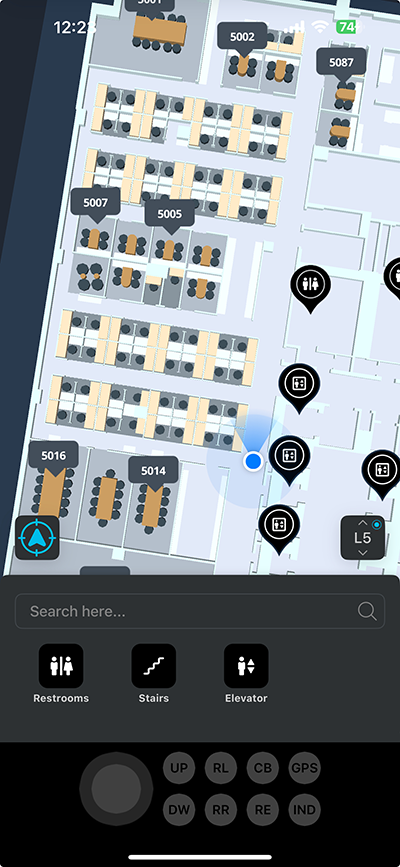
val config = MapWidgetConfiguration.defaultConfiguration()
// enables joystick to simulate location
config.isJoystickEnabled = true
MapWidgetFragment.newInstance(config, supportFragmentManager, R.id.fragment_container)
Use the options as required:
Once you begin simulating a location, use the circle dial on the left to move the Blue Dot around the map.
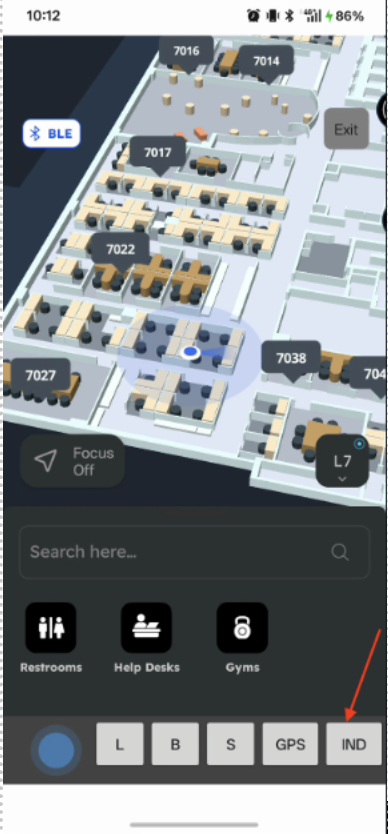
Use this method to retrieve the list of buildings from the Cisco Spaces account by using the Cisco Spaces API Key.
/// initialize Spaces WayFinding
let spacesWayFinding = SpacesWayFinding(
    apiKey: String,
    region: SpacesWayFindingRegion
)
spacesWayFinding.getAllBuildings(buildings, error in
    /// Custom Logic
)val spacesWayFinding = SpacesWayFinding(
apiKey: String,
region: SpacesWayFindingRegion
)
spacesWayFinding.getAllBuildings{ spacesBuildings, error ->
/// Custom Logic
}| Attribute | Type | Description | Platform |
|---|---|---|---|
| apiKey | String | Spaces API which is created for an account |
iOS Android |
| region | Region | Spaces Region |
iOS Android |
| Property | Type | Description | Platform |
|---|---|---|---|
| spacesBuildings | List Building | SpacesBuilding Object |
iOS Android |
Use this method to get the Building object by building id.
/// Function in SDK
func getBuildingById(id: String) -> Building?

/// Methods to call
spacesWayFinding.getBuildingById(id: <id>) -> Building?/// Function in SDK
fun getBuildingById(id: String): Building?
/// Methods to call
spacesWayFinding.getBuildingById(id: <id>): Building?| Attribute | Type | Description | Platform |
|---|---|---|---|
| id | String | Spaces Building id |
iOS Android |
| Property | Type | Description | Platform |
|---|---|---|---|
| Building | Building? | Building object |
iOS Android |
Initialize “SpacesWayFindingParams” and select the building. This method should be called and the state should be in running status to use any of the methods in the SDK.
/// Initialize SpacesWayFindingParams
let params = SpacesWayFindingParams(building: building)
params.mode = SpacesWayFindingMode.debug
params.loggerLevel = LoggerLevel.error

/// Sets the persona type to control access to public and restricted areas
params.personaType = PersonaType.VISITOR

spacesWayFinding.selectBuilding(params: params) { [weak self] (state) in
    /// Your Custom logic based on SDK start
}/// Initialize SpacesWayFindingParams
val params = SpacesWayFindingParams(buildingCredential)
params.loggerLevel = .error
/// Sets the persona type to control access to public and restricted areas
params.personaType = PersonaType.VISITOR
spacesWayFinding.selectBuilding(applicationContext, params) { state ->
/// Your Custom logic based on SDK start
}| Attribute | Type | Description | Platform |
|---|---|---|---|
| params | Object | SpacesWayFinding params |
iOS Android |
| applicationContext | Activity Context | Activity Context | Android |
| Property | Type | Description | Platform |
|---|---|---|---|
| state | Object | SpacesWayFindingState Object which gives the SDK status |
iOS Android |
Use this method to get the list of floors for a building.
/// Function in SDK
func getFloors() -> [Floor]

/// Methods to call
spacesWayFinding.getFloors() -> [Floor]/// Function in SDK
fun getFloors(): List<Floor>
/// Methods to call
spacesWayFinding.getFloors(): List<Floor>None
| Property | Type | Description | Platform |
|---|---|---|---|
| Floors | List<Floor> | Floor has id, LongName, ShortName, level, building |
iOS Android |
Use this method to get a Floor object by location Id.
/// Function in SDK
func getFloor(floorId: String) -> Floor?

/// Methods to call
spacesWayFinding.getFloor(floorId: <floorId>) -> Floor?/// Function in SDK
fun getFloor(floorId: String): Floor?
/// Methods to call
spacesWayFinding.getFloor(floorId: <floorId>): Floor?| Attribute | Type | Description | Platform |
|---|---|---|---|
| floorId | String | Spaces Floor Location Id |
iOS Android |
| Property | Type | Description | Platform |
|---|---|---|---|
| Floor | Floor | Floor has ID, LongName, ShortName, FloorNo, building |
iOS Android |
Use this method to get Floor object by level.
/// Function in SDK
func getFloor(level: Int) -> Floor?

/// Methods to call
spacesWayFinding.getFloor(level: <level>) -> Floor?/// Function in SDK
fun getFloor(level Int): Floor?
/// Methods to call
spacesWayFinding.getFloor(level: <level>): Floor?| Attribute | Type | Description | Platform |
|---|---|---|---|
| level | Integer | Spaces Level Index | iOS Android |
| Property | Type | Description | Platform |
|---|---|---|---|
| Floor | Floor | Floor has ID, LongName, ShortName, FloorNo, building | iOS Android |
Use this method to get all the PoIs.
/// Function in SDK
func getPoIs() -> [PoI]

/// Methods to call
spacesWayFinding.getPoIs() -> [PoI]/// Function in SDK
fun getPoIs(): List<PoI>
/// Methods to call
spacesWayFinding.getPoIs(): List<PoI>None
| Property | Type | Description | Platform |
|---|---|---|---|
| [PoI] | List<PoI> | PoI Object | iOS Android |
Use this method to get a PoI Object by fid, id, or externalId.
/// Function in SDK
func getPoI(fid: String?, id: String?, externalId: String?) -> PoI?

/// To get the POI by fid
spacesWayFinding.getPoI(fid: <fid>) -> PoI?

/// To get the POI by Spaces id
spacesWayFinding.getPoI(id: <id>) -> PoI?

/// To get the POI by externalId
spacesWayFinding.getPoI(externalId: <externalId>) -> PoI?/// Function in SDK
fun getPoI(fid: String?, id: String?, externalId: String?): PoI?
/// To get the POI by fid
spacesWayFinding.getPoI(fid: <fid>): PoI?
/// To get the POI by Spaces id
spacesWayFinding.getPoI(id: <id>): PoI?
/// To get the POI by externalId
spacesWayFinding.getPoI(externalId: <externalId>): PoI?| Attribute | Type | Description | Platform |
|---|---|---|---|
| fid | String? | PoI feature id | iOS Android |
| id | String? | Spaces PoI id | iOS Android |
| externalId | String? | PoI external id | iOS Android |
| Property | Type | Description | Platform |
|---|---|---|---|
| PoI | PoI | PoI has id, name, typeCode, campusId, buildingId, floorId, and externalId | iOS Android |
Use this method to get all the PoIs for a floor.
/// Function in SDK
func getPoIs(floorId: String) -> [PoI]

/// Methods to call
spacesWayFinding.getPoIs(floorId: <floorId>) -> [PoI]/// Function in SDK
fun getPoIs(floorId: String): List<PoI>
/// Methods to call
spacesWayFinding.getPoIs(floorId: <floorId>): List<PoI>| Attribute | Type | Description | Platform |
|---|---|---|---|
| floorId | String | Spaces Floor Id |
iOS Android |
| Property | Type | Description | Platform |
|---|---|---|---|
| [PoI] | List<PoI> | PoI object |
iOS Android |
Use this method to show the floor on a map by a Floor object.
/// Initialize MapWidgetConfiguration
let config = MapWidgetConfiguration()

let mapWidget = MapWidgetViewController(configuration: config)

mapWidget.showFloor(floor: Floor) { error in
    /// Handle completion or error if needed
}/// Initialize MapWidgetConfiguration
val config = MapWidgetConfiguration.defaultConfiguration()
MapWidgetFragment.newInstance(
configuration = config,
fragmentManager = supportFragmentManager,
containerId = R.id.fragment_container
) { widget ->
widget.showFloor(floor: Floor) { error ->
/// Handle completion or error if needed
}
}| Attribute | Type | Description | Platform |
|---|---|---|---|
| floor | Floor | Floor Object |
iOS Android |
None
After confirming the SDK is in “running” state, this method shows the PoI on a map using a PoI object.
/// Initialize MapWidgetConfiguration
let config = MapWidgetConfiguration()

let mapWidget = MapWidgetViewController(configuration: config)

mapWidget.showPoI(poi: PoI) { error in
    /// Handle completion or error if needed
}/// Initialize MapWidgetConfiguration
val config = MapWidgetConfiguration.defaultConfiguration()
MapWidgetFragment.newInstance(
configuration = config,
fragmentManager = supportFragmentManager,
containerId = R.id.fragment_container
) { widget ->
widget.showPoi(poi: PoI) { error ->
/// Handle completion or error if needed
}
}| Attribute | Type | Description | Platform |
|---|---|---|---|
| poi | PoI | Poi object |
iOS Android |
None
Use this method to show the building on a map by a Building object.
let config = MapWidgetConfiguration()
let mapWidget = MapWidgetViewController(configuration: config)

mapWidget.showBuilding(building: Building) { error in
    /// Handle completion or error if needed
}val config = MapWidgetConfiguration.defaultConfiguration()
MapWidgetFragment.newInstance(
configuration = config,
fragmentManager = supportFragmentManager,
containerId = R.id.fragment_container
) { widget ->
widget.showBuilding(building: Building) { error ->
/// Handle completion or error if needed
}
}| Attribute | Type | Description | Platform |
|---|---|---|---|
| building | Building | Building Object |
iOS Android |
N/A
Use this method to add custom sources to the map. It typically adheres to the Maplibre Source specification .
let config = MapWidgetConfiguration()
let mapWidget = MapWidgetViewController(configuration: config)

mapWidget.addSource(
    id: <sourceId>,
    source: [
        "type": "geojson",
        "data": geoJSONString
    ]
)val config = MapWidgetConfiguration.defaultConfiguration()
MapWidgetFragment.newInstance(
configuration = config,
fragmentManager = supportFragmentManager,
containerId = R.id.fragment_container
) { widget ->
widget.addSource(
id: <sourceId>,
source: JSONObject().apply {
put("type", "geojson")
put("data", geoJSONString)
}
)
}| Attribute | Type | Description | Platform |
|---|---|---|---|
| id | String | Source Id |
iOS Android |
| source | JSON object | Source object |
iOS Android |
None
Use this method to add custom layers to the map. It typically adheres to the Maplibre Layer specification .
let config = MapWidgetConfiguration()
let mapWidget = MapWidgetViewController(configuration: config)

mapWidget.addLayer(layer: [
    "id": <layerId>,
    "type": <layerType>,
    "source": <sourceId>,
    "source-layer": <sourceLayer>,
    "filter": ["any", ["==", "type", "stairs"]],
    "paint": ["fill-color": "#FF0000"],
    "layout": ["text": "{name}", "text-size": 12],
    "minZoom": 13,
    "maxZoom": 20
])val config = MapWidgetConfiguration.defaultConfiguration()
MapWidgetFragment.newInstance(
configuration = config,
fragmentManager = supportFragmentManager,
containerId = R.id.fragment_container
) { widget ->
val customLayer = JSONObject().apply {
put("id", <layerId>)
put("type", <layerType>)
put("source", <sourceId>)
put("source-layer", <sourceLayer>)
put("minzoom", 17)
put("maxzoom", 24)
put("filter", JSONArray().apply {
put("all")
put(JSONArray().apply {
put("==")
put("type")
put("stairs")
})
})
put("paint", JSONObject().apply {
put("fill-color", "#000000")
})
put("layout", JSONObject().apply {
put("text-size", 12)
})
}
widget.addLayer(layer: customLayer)
}| Attribute | Type | Description | Platform |
|---|---|---|---|
| layer | JSON object | Layer object |
iOS Android |
None
Use this method to add a new marker layer on the map.
let config = MapWidgetConfiguration()
let mapWidget = MapWidgetViewController(configuration: config)

let markerLayer = mapWidget.addMarkerLayer(id: <markerLayerId>)val config = MapWidgetConfiguration.defaultConfiguration()
MapWidgetFragment.newInstance(
configuration = config,
fragmentManager = supportFragmentManager,
containerId = R.id.fragment_container
) { widget ->
widget.addMarkerLayer(id: <markerLayerId>) { markerLayer ->
// TODO
}
}| Attribute | Type | Description | Platform |
|---|---|---|---|
| id | String | Identifier of the marker layer |
iOS Android |
Marker Layer Object
Use this method to set the icon for markers on the map.
let config = MapWidgetConfiguration()
let mapWidget = MapWidgetViewController(configuration: config)

let markerLayer = mapWidget.addMarkerLayer(id: <markerLayerId>)

markerLayer.setIcon(
    url: <imageurl>,
    imageOptions: ["pixelRatio": 2]
)val config = MapWidgetConfiguration.defaultConfiguration()
MapWidgetFragment.newInstance(
configuration = config,
fragmentManager = supportFragmentManager,
containerId = R.id.fragment_container
) { widget ->
widget.addMarkerLayer(id: <markerLayerId>) { markerLayer ->
markerLayer.setIcon(
url: <imageurl>,
imageOptions: JSONObject().apply {
put("sdf", false)
}
)
}
}| Attribute | Type | Description | Platform |
|---|---|---|---|
| url | String | The URL of the icon image |
iOS Android |
| imageOptions | Object |
Optional image options for the icon. For more information, see addImage . |
iOS Android |
None
Use this method to set the markers on the map.
let config = MapWidgetConfiguration()
let mapWidget = MapWidgetViewController(configuration: config)
let markerLayer = mapWidget.addMarkerLayer(id: <markerLayerId>)

// Usecase 1: marker objects with lvl filtering
markerLayer.setMarkers([
    ["coordinates": [<Long>, <Lat>], "name": <markerName>],
    ["coordinates": [<Long>, <Lat>], "name": <markerName>, "lvl": <lvlIndex>]
])

// Usecase 2: coordinate arrays
markerLayer.setMarkers([
    [<Long>, <Lat>],
    [<Long>, <Lat>]
])val config = MapWidgetConfiguration.defaultConfiguration()
MapWidgetFragment.newInstance(
configuration = config,
fragmentManager = supportFragmentManager,
containerId = R.id.fragment_container
) { widget ->
widget.addMarkerLayer(id: <markerLayerId>) { markerLayer ->
// Usecase 1: marker objects with lvl filtering
markerLayer.setMarkers(JSONArray().apply {
put(JSONObject().apply {
put("coordinates", JSONArray().apply {
put(<Long>)
put(<Lat>)
})
put("name", <markerName>)
put("lvl", <lvlIndex>)
})
})
// Usecase 2: coordinate arrays
markerLayer.setMarkers(JSONArray().apply {
put(JSONArray().apply {
put(<Long>)
put(<Lat>)
})
})
}
}| Attribute | Type | Description | Platform |
|---|---|---|---|
| markers | Array | An array of marker objects or coordinates. Each marker can be an array of coordinates [longitude, latitude] or an object with “coordinates” and “name” properties and “lvl” property. |
iOS Android |
None
Use this method to set the layout properties for the markers on the map.
let config = MapWidgetConfiguration()
let mapWidget = MapWidgetViewController(configuration: config)
let markerLayer = mapWidget.addMarkerLayer(id: <markerLayerId>)

markerLayer.setLayout([
    "icon-text-fit": "none"
])val config = MapWidgetConfiguration.defaultConfiguration()
MapWidgetFragment.newInstance(
configuration = config,
fragmentManager = supportFragmentManager,
containerId = R.id.fragment_container
) { widget ->
widget.addMarkerLayer(id: <markerLayerId>) { markerLayer ->
markerLayer.setLayout(
JSONObject().apply {
put("icon-size", 0.5)
}
)
}
}| Attribute | Type | Description | Platform |
|---|---|---|---|
| layout | Object |
An object containing layout properties and their values. For more information, see Maplibre Symbol Properties . |
iOS Android |
None
Use this method to set the paint properties for the markers on the map.
let config = MapWidgetConfiguration()
let mapWidget = MapWidgetViewController(configuration: config)
let markerLayer = mapWidget.addMarkerLayer(id: <markerLayerId>)

markerLayer.setPaint([
    "text-color": <Hex color>
])val config = MapWidgetConfiguration.defaultConfiguration()
MapWidgetFragment.newInstance(
configuration = config,
fragmentManager = supportFragmentManager,
containerId = R.id.fragment_container
) { widget ->
widget.addMarkerLayer(id: <markerLayerId>) { markerLayer ->
markerLayer.setPaint(JSONObject().apply {
put("icon-color", <Hex color>)
})
}
}| Attribute | Type | Description | Platform |
|---|---|---|---|
| paint | Object |
An object containing paint properties and their values. For more information, see Maplibre Symbol Properties . |
iOS Android |
None
Use this method to toggle the visibility of all the markers added using setMarkers() on the map.
let config = MapWidgetConfiguration()
let mapWidget = MapWidgetViewController(configuration: config)
let markerLayer = mapWidget.addMarkerLayer(id: <markerLayerId>)

markerLayer.show() // To show all the markers
markerLayer.hide() // To hide all the markersval config = MapWidgetConfiguration.defaultConfiguration()
MapWidgetFragment.newInstance(
configuration = config,
fragmentManager = supportFragmentManager,
containerId = R.id.fragment_container
) { widget ->
widget.addMarkerLayer(id: <markerLayerId>) { markerLayer ->
markerLayer.show() // To show all the markers
markerLayer.hide() // To hide all the markers
}
}None
None
Use this method to retrieve the list of buildings from the Cisco Spaces account by using the Cisco Spaces API Key.
/// initialize Spaces WayFinding
let spacesWayFinding = SpacesWayFinding(
    apiKey: String,
    region: SpacesWayFindingRegion
)
spacesWayFinding.getAllBuildings(buildings, error in
    /// Custom Logic
)val spacesWayFinding = SpacesWayFinding(
apiKey: String,
region: SpacesWayFindingRegion
)
spacesWayFinding.getAllBuildings{ spacesBuildings, error ->
/// Custom Logic
}| Attribute | Type | Description | Platform |
|---|---|---|---|
| apiKey | String | Spaces API which is created for an account |
iOS Android |
| region | Region | Spaces Region |
iOS Android |
| Property | Type | Description | Platform |
|---|---|---|---|
| spacesBuildings | List Building | SpacesBuilding Object |
iOS Android |
After confirming that the SDK is in “running” state, use this method to get a MapWidgetFragment object to render the map on the screen. MapWidgetConfiguration object is used to customize the map widget components and their behavior.
/// Initialize MapWidgetConfiguration
val config = MapWidgetConfiguration.defaultConfiguration()

/// Initialize MapWidgetFragment and present it
val mapWidget = MapWidgetFragment.newInstance(
    configuration = config,
    fragmentManager = supportFragmentManager,
    containerId = R.id.fragment_container
)| Attribute | Type | Description | Platform |
|---|---|---|---|
| configuration | Object | MapWidgetConfiguration | Android |
| fragmentManager | Object | Fragment Manager | Android |
| containerId | Object | Resource Container Id | Android |
MapWidgetFragment object
Provides configuration options for the SDK map widget. It exposes properties and methods to enable or disable features and customize the widget’s appearance and behavior.
/// Initialize MapWidgetConfiguration
let config = MapWidgetConfiguration()
config.isQuickAccessEnabled = false
config.isSearchEnabled = false
// ... other configuration/// Initialize MapWidgetConfiguration
val config = MapWidgetConfiguration.defaultConfiguration()
config.isQuickAccessEnabled = false
config.isSearchEnabled = false
// ... other configuration| Property | Type | Default Value | Description | Platform |
|---|---|---|---|---|
| isQuickAccessEnabled | Boolean | true | Controls whether the Search by Category UI is visible. |
iOS Android |
| isSearchEnabled | Boolean | true | Controls whether the search option UI is visible. |
iOS Android |
| isLevelSelectorEnabled | Boolean | true | Controls whether the level selector UI is visible or not. |
iOS Android |
| isJoystickEnabled | Boolean | true | Enables or disables joystick functionality. |
iOS Android |
| theme | Object | Default Object | Sets or retrieves the map widget’s theme. |
iOS Android |
| onboardingConfiguration | Object | Default Object | Manages onboarding configuration using MapWidgetOnboardingConfiguration instance |
iOS Android |
| minimumZoomLevel | Float | true | Sets the minimum zoom level a user can zoom out |
iOS Android |
| maximumZoomLevel | Float | true | Sets the maximum zoom level a user can zoom in |
iOS Android |
Configures onboarding screens in the Cisco Spaces SDK map widget. It allows you to set the app title, privacy policy URL, and logo image URL for the onboarding experience.
let onboardingConfig = MapWidgetOnboardingConfiguration(
    appTitle: "name",
    privacyPolicyUrlString: https://eg.com/privacy
)

onboardingConfig.logoImageUrl = https://eg.com/logo.png

/** Declare Onboarding Configuration on MapWidgetConfiguration */
let config = MapWidgetConfiguration()

config.isOnboardingEnabled = true
config.onboardingConfiguration = onboardingConfig

...val onboardingConfig = MapWidgetOnboardingConfiguration(
appTitle = "name",
privacyPolicyUrlString = https://eg.com/privacy,
topImageResId = R.drawable.image
)
/** Declare Onboarding Configuration on MapWidgetConfiguration */
val config = MapWidgetConfiguration.defaultConfiguration()
config.isOnboardingEnabled = true
config.onBoardingConfiguration = onboardingConfig
...| Property | Type | Description | Platform |
|---|---|---|---|
| privacyPolicyUrl | String | Link to the Privacy Policy page. |
iOS Android |
| appTitle | String | Name of the appTitle that should be displayed on the onboarding page. |
iOS Android |
| logoImageUrl | String | The logo image URL displayed on the onboarding page. | iOS |
| topImageResId | Int | The resource ID for the logo displayed on the onboarding page. | Android |
Handles map widget load and failure events. This class is only available for Android.
/** Initialize MapWidgetEventsHandler */
class CustomMapWidgetEventsHandler(mapWidget: MapWidgetFragment) : MapWidgetEventsHandler(mapWidget) {

    /// Triggered when the map starts loading.
    override fun onDidStartLoading(identifier: String) {
        /// custom logic.
        super.onDidStartLoading(identifier)
    }

    /// Triggered when the map finishes loading.
    override fun onDidEndLoading(error: String?) {
        /// custom logic.
        super.onDidEndLoading(error)
    }

    /// Triggered when an error occurs while loading the map.
    override fun onFailure(error: String?) {
        /// custom logic.
        super.onFailure(error)
    }
}

val config = MapWidgetConfiguration.defaultConfiguration()

MapWidgetFragment.newInstance(
    configuration = config,
    fragmentManager = supportFragmentManager,
    containerId = R.id.fragment_container
) { widget ->

    /** Declare MapWidgetEventsHandler **/
    widget.mapWidgetEventsHandler = CustomMapWidgetEventsHandler(widget)

    ...
}| Method | Parameters | Platform | Description |
|---|---|---|---|
| onDidStartLoading | identifier | Android | Triggered when the map starts loading. |
| onDidEndLoading | error | Android | Triggered when the map finishes loading. |
| onFailure | error | Android | Triggered when an error occurs while loading the map. |
Handler interface to respond to user interactions with the map in the widget.
/** Initialize MapEventHandler */
class CustomMapEventHandler: MapEventsHandler {

    /// Triggered when the map starts loading.
    override func mapDidStartLoading(_ map: MapViewController) {
        /// custom logic.
        super.mapDidStartLoading(map)
    }

    /// Triggered when the map finishes loading.
    override func mapDidEndLoading(_ map: MapViewController) {
        /// custom logic.
        super.mapDidEndLoading(map)
    }

    /// Triggered when the map is tapped.
    override func mapDidReceiveTap(
        _ map: MapViewController,
        coordinate: CLLocationCoordinate2D
    ) {
        /// custom logic
        super.mapDidReceiveTap(map, coordinate: coordinate)
    }

    /// Triggered when the feature is tapped on the map.
    override func map(
        _ map: MapViewController,
        didReceiveTapOnFeature: Feature
    ) {
        /// custom logic
        super.map(map, didReceiveTapOnFeature: didReceiveTapOnFeature)
    }
}

let config = MapWidgetConfiguration()
let mapWidget = MapWidgetViewController(configuration: config)

...

mapWidget.mapEventsHandler = CustomMapEventHandler()/** Initialize MapEventsHandler */
class CustomMapEventsHandler(
mapWidget: MapWidgetFragment
) : MapEventsHandler(mapWidget) {
/// Triggered when a PoI is tapped on the map.
override fun mapDidReceiveTapOnPoi(
mapFragment: MapFragment,
poi: PoI
) {
/// custom logic
super.mapDidReceiveTapOnPoi(mapFragment, poi)
}
/// Triggered when the map is tapped.
override fun mapDidReceiveTap(
mapFragment: MapFragment,
tappedLocation: TappedLocation
) {
/// custom logic
super.mapDidReceiveTap(mapFragment, tappedLocation)
}
}
val config = MapWidgetConfiguration.defaultConfiguration()
MapWidgetFragment.newInstance(
configuration = config,
fragmentManager = supportFragmentManager,
containerId = R.id.fragment_container
) { widget ->
/** Declare MapEventsHandler **/
widget.mapEventsHandler = CustomMapEventsHandler(widget)
...
}| Method | Parameters | Platform | Description |
|---|---|---|---|
| mapDidStartLoading | map | iOS | Triggered when the map starts loading. |
| mapDidEndLoading | map | iOS | Triggered when the map finishes loading. |
| mapDidReceiveTap | map, coordinate | iOS | Triggered when the map is tapped. |
| mapDidReceiveTap | mapFragment, tappedLocation | Android | Triggered when the map is tapped. |
| map | map, didReceiveTapOnFeature | iOS | Triggered when a Poi is tapped on the map. |
| mapDidReceiveTapOnPoi | mapFragment, poi | Android | Triggered when a PoI is tapped on the map. |
Handler interface to respond to user interactions with the Exit button in the map widget.
/// Initialize MapExitHandler
class MapExitHandler: ExitButtonEventsHandler {

    /// This function is triggered when the exit button is tapped.
    override func exitButtonDidTap(_ exitbutton: MapWidgetExitButton) {
        /// Custom Exit logic
    }
}

let config = MapWidgetConfiguration()
let mapWidget = MapWidgetViewController(configuration: config)

// Declare MapExitHandler
mapWidget.exitButtonEventsHandler = MapExitHandler()/// Initialize MapExitHandler
class MapExitHandler : ExitButtonEventsHandler() {
/// This function is triggered when the exit button is clicked.
override fun onExitClicked(
mapWidget: MapWidgetFragment,
exitButton: TextView
) {
super.onExitClicked(mapWidget, exitButton)
/// Custom Exit logic
}
}
val config = MapWidgetConfiguration.defaultConfiguration()
MapWidgetFragment.newInstance(
configuration = config,
fragmentManager = supportFragmentManager,
containerId = R.id.fragment_container
) { widget ->
// Declare MapExitHandler
widget.exitButtonEventsHandler = MapExitHandler()
}| Method | Parameters | Platform | Description |
|---|---|---|---|
| exitButtonDidTap | exitbutton | iOS | Triggered when the Exit button is tapped. Default is to dismiss widget. |
| onExitClicked | exitbutton, mapWidget | Android | Triggered when the Exit button is tapped. Default is to dismiss widget. |
Protocol for handling path finding events in the map widget, such as closing or canceling navigation.
/** Initialize PathFindingEventsHandler */
class CustomPathFindingEventsHandler: PathFindingEventsHandler {

    /// Called when the close button is tapped after wayfinding has finished.
    override func wayFindingDidTapClose(_ destination: Feature) {
        /// Custom logic
        super.wayFindingDidTapClose(destination)
    }

    /// Called when the cancel button is tapped while wayfinding is active.
    override func wayFindingDidTapCancel(_ destination: Feature) {
        /// Custom logic
        super.wayFindingDidTapCancel(destination)
    }
}

let config = MapWidgetConfiguration()
let mapWidget = MapWidgetViewController(configuration: config)

...

mapWidget.pathFindingEventsHandler = CustomPathFindingEventsHandler()/** Initialize PathFindingEventsHandler */
class CustomPathFindingEventsHandler(
mapWidget: MapWidgetFragment
) : PathFindingEventsHandler(mapWidget) {
/// Called when the close button is tapped while wayfinding is active.
override fun wayfindingDidTapClose() {
/// custom logic.
super.wayfindingDidTapClose()
}
/// Called when the Done button is tapped after wayfinding is completed.
override fun wayfindingDone() {
/// custom logic
super.wayfindingDone()
}
/// Called when the wayfinding UI is shown.
override fun wayfindingDidShown() {
/// custom logic
super.wayfindingDidShown()
}
}
val config = MapWidgetConfiguration.defaultConfiguration()
MapWidgetFragment.newInstance(
configuration = config,
fragmentManager = supportFragmentManager,
containerId = R.id.fragment_container
) { widget ->
widget.pathFindingEventsHandler = CustomPathFindingEventsHandler(widget)
...
}| Method | Parameters | Platform | Description |
|---|---|---|---|
| wayfindingDidTapClose | destination | iOS | Called when the Close button is tapped after wayfinding has finished. |
| wayFindingDidTapCancel | destination | iOS | Called when the Cancel button is tapped while wayfinding is active. |
| wayfindingDidTapClose | – | Android | Called when the Close button is tapped during wayfinding. |
| wayfindingDone | – | Android | Called when the Done button is tapped after wayfinding is completed. |
| wayfindingDidShown | – | Android | Called when the wayfinding UI is shown. |
Configures the theme for the Cisco Spaces SDK map widget. This allows customization of visual aspects such as colors.
/// Initialize MapWidgetTheme
let theme = MapWidgetTheme(
    accentColor: "#00BCEB",
    backgroundColor: "#2D3134",
    foregroundColor: "#FFFFFF",
    successColor: "#28CC7A",
    alertColor: "#28CC7A",
    dangerColor: "#E43458",
    infoColor: "#FFFFFF"
)

// Assign theme to MapWidgetConfiguration
let config = MapWidgetConfiguration()
config.theme = theme/// Initialize MapWidgetTheme
val theme = MapWidgetTheme(
accentColor = "#00BCEB",
backgroundColor = "#2D3134",
foregroundColor = "#FFFFFF",
successColor = "#28CC7A",
alertColor = "#28CC7A",
dangerColor = "#E43458",
infoColor = "#FFFFFF"
)
// Assign theme to MapWidgetFragment
MapWidgetFragment.theme = theme| Property | Type | Description | Platform |
|---|---|---|---|
| accentColor | String | Accent color |
iOS Android |
| backgroundColor | String | Background color |
iOS Android |
| foregroundColor | String | Foreground color |
iOS Android |
| successColor | String | Success color |
iOS Android |
| alertColor | String | Alert color |
iOS Android |
| dangerColor | String | Danger color |
iOS Android |
| infoColor | String | Info color |
iOS Android |
Represents a building within Cisco Spaces, containing core identification and naming properties.
| Attribute | Type | Description | Platform |
|---|---|---|---|
| id | String | Spaces Building id |
iOS Android |
| name | String | Spaces Building Name |
iOS Android |
| campusId | String | Spaces Campus id |
iOS Android |
Defines the available regions for Cisco Spaces.
| Attribute | Type | Description | Platform |
|---|---|---|---|
| IO | enum | US region |
iOS Android |
| EU | enum | EU region |
iOS Android |
| SG | enum | SG region |
iOS Android |
| EVENT | enum | Event setup |
iOS Android |
Specifies the mode for the Cisco Spaces SDK, which controls logging and optimization settings.
| Attribute | Type | Description | Platform |
|---|---|---|---|
| debug | enum | Debug logs will be printed | iOS |
| release | enum | SDK options optimized for Release | iOS |
Defines the logging level for the Cisco Spaces SDK.
| Attribute | Type | Description | Platform |
|---|---|---|---|
| all | enum | All (equivalent to Verbose) | iOS |
| verbose | enum | Verbose Logs |
iOS Android |
| info | enum | Only Info logs |
iOS Android |
| warning | enum | Only Warning Logs |
iOS Android |
| error | enum | Only Error Logs |
iOS Android |
| debug | enum | Only Debug Logs | Android |
| off | enum | No Logs will be printed | iOS |
Configuration object containing parameters required to initialize and use the Cisco Spaces WayFinding SDK.
| Attribute | Type | Description | Platform |
|---|---|---|---|
| spacesBuildings | Object | Spaces Building Object |
iOS Android |
| mode | Object | SpacesMode | iOS |
| loggerLevel | Object | loggerLevel |
iOS Android |
Represents the current status of the Cisco Spaces WayFinding SDK.
| Attribute | Type | Description | Platform |
|---|---|---|---|
| failedNoInternetConnection | enum | If no internet connection | iOS |
| FAILED_NO_INTERNET_CONNECTION | enum | If no internet connection | Android |
| failedRegistration | enum | Spaces SDK Registration failed | iOS |
| FAILED_REGISTRATION | enum | Spaces SDK Registration failed | Android |
| failedValidation | enum | Spaces SDK validation failed | iOS |
| FAILED_VALIDATION | enum | Spaces SDK validation failed | Android |
| failedInvalidDeepLinkUrl | enum | Spaces SDK failed due to invalid deep link URL | iOS |
| FAILED_INVALID_DEEPLINK_URL | enum | Spaces SDK failed due to invalid deep link URL | Android |
| failedMissingBaseUrlOrClientIdentifier | enum | SDK failed due to base URL or client ID not set | iOS |
| FAILED_MISSING_BASE_URL_OR_CLIENT_IDENTIFIER | enum | SDK failed due to base URL or client ID not set | Android |
| failedInternalFilesPathNotSet | enum | SDK failed due to internal files path not set | iOS |
| FAILED_INTERNAL_FILES_PATH_NOT_SET | enum | SDK failed due to internal files path not set | Android |
| failedLicenseKeyNotSet | enum | SDK failed due to license key not set | iOS |
| FAILED_LICENSE_KEY_NOT_SET | enum | SDK failed due to license key not set | Android |
| failedToGetConfig | enum | SDK failed due to missing configuration | iOS |
| FAILED_TO_GET_CONFIG | enum | SDK failed due to missing configuration | Android |
| failedDeepLinkUrlTimeout | enum | SDK failed due to deep link URL timeout | iOS |
| FAILED_DEEPLINK_URL_TIMEOUT | enum | SDK failed due to deep link URL timeout | Android |
| resolvingToken | enum | Spaces SDK is resolving the token | iOS |
| RESOLVING_TOKEN | enum | Spaces SDK is resolving the token | Android |
| tokenResolved | enum | Spaces SDK resolved token | iOS |
| TOKEN_RESOLVED | enum | Spaces SDK resolved token | Android |
| off | enum | Spaces SDK is not started | iOS |
| OFF | enum | Spaces SDK is not started | Android |
| configuring | enum | Spaces SDK configuration is in progress | iOS |
| CONFIGURING | enum | Spaces SDK configuration is in progress | Android |
| validating | enum | Spaces SDK validation is in progress | iOS |
| VALIDATING | enum | Spaces SDK validation is in progress | Android |
| registering | enum | Spaces SDK registration is in progress | iOS |
| REGISTERING | enum | Spaces SDK registration is in progress | Android |
| running | enum | Spaces SDK is running now | iOS |
| RUNNING | enum | Spaces SDK is running now | Android |
Represents a campus within Cisco Spaces, including its identification, name, and associated buildings.
| Attribute | Type | Description | Platform |
|---|---|---|---|
| id | String | Spaces Campus Location Id |
iOS Android |
| name | String | Spaces Campus Name |
iOS Android |
| buildings | List<Building> | List of Building Object |
iOS Android |
Represents a building within a campus in Cisco Spaces, including identification, name, associated floors, and campus reference.
| Attribute | Type | Description | Platform |
|---|---|---|---|
| id | String | Spaces building Location Id |
iOS Android |
| name | String | Spaces Building Name |
iOS Android |
| floors | List<Floor> | List of Building Floor Object |
iOS Android |
| campus | Campus | Spaces Campus Object |
iOS Android |
Represents a floor within a building in Cisco Spaces, including identification, names, level, and associated building.
| Attribute | Type | Description | Platform |
|---|---|---|---|
| id | String | Spaces floor Location Id |
iOS Android |
| longName | String | Floor Long name |
iOS Android |
| shortName | String | Floor Short name |
iOS Android |
| level | Int | Floor Level |
iOS Android |
| building | Building | Spaces Building Object |
iOS Android |
Represents a Point of Interest (PoI) within Cisco Spaces, including identification, name, type, and location references.
| Attribute | Type | Description | Platform |
|---|---|---|---|
| id | String | Spaces PoI ID |
iOS Android |
| name | String | PoI Name |
iOS Android |
| typeCode | String | PoI TypeCode |
iOS Android |
| campusId | String | Spaces Campus ID |
iOS Android |
| buildingId | String | Spaces Building ID |
iOS Android |
| floorId | String | Spaces Floor ID |
iOS Android |
| externalId | String | PoI External ID |
iOS Android |
You can use these links to download the Cisco Spaces WayFinding SDK or the sample apps.
To download the Cisco Spaces WayFinding SDK for iOS or Android, click the corresponding link:
To download the Cisco Spaces WayFinding SDK sample apps for iOS or Android, click the corresponding link:
Cisco Spaces WayFinding API offers these support channels.
For support from the Cisco Spaces engineering team, raise a ticket by writing to cisco-spaces-support@external.cisco.com .
For the most recent news and announcements of the Cisco Spaces API, visit the Cisco Spaces Community . This is your primary source for official updates and any important information regarding the Cisco Spaces API. For detailed technical changes, refer to the Changelog .
For a selection of informative articles, browse the Resources from Spaces . Use it as a starting place to check if your question has already been answered.
Stay updated with the latest announcements and connect with other Cisco Spaces developers.
Join the Cisco Spaces Community to discuss best practices, share experiences, and get advice from peers.
To open a Cisco Technical Assistance Center (TAC) case, use one of the following options:
For consulting, contact a Cisco Developer Partner or your Cisco Sales Team for professional service options.