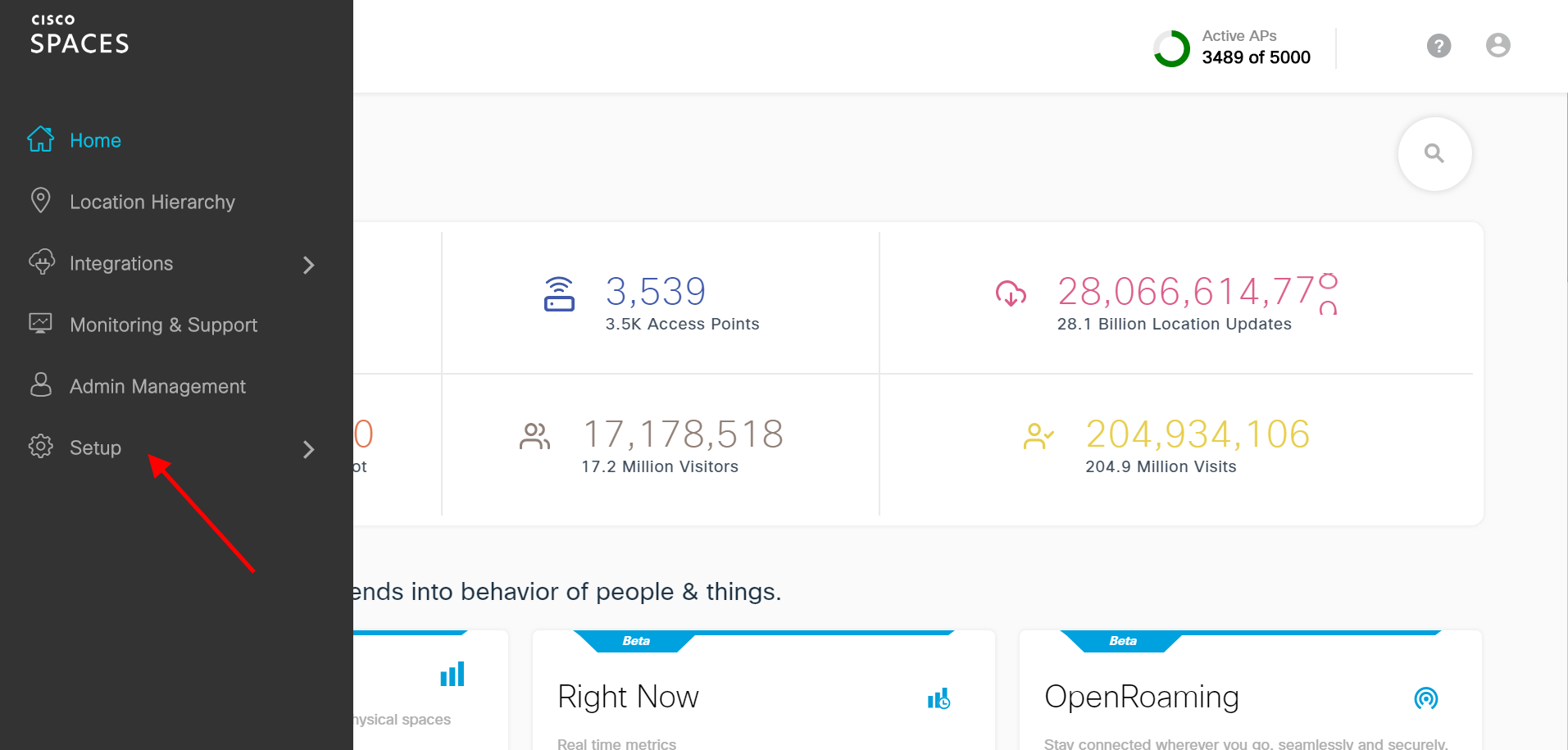
In the Cisco Spaces dashboard, click on Setup > Wireless Networks on the left navigation
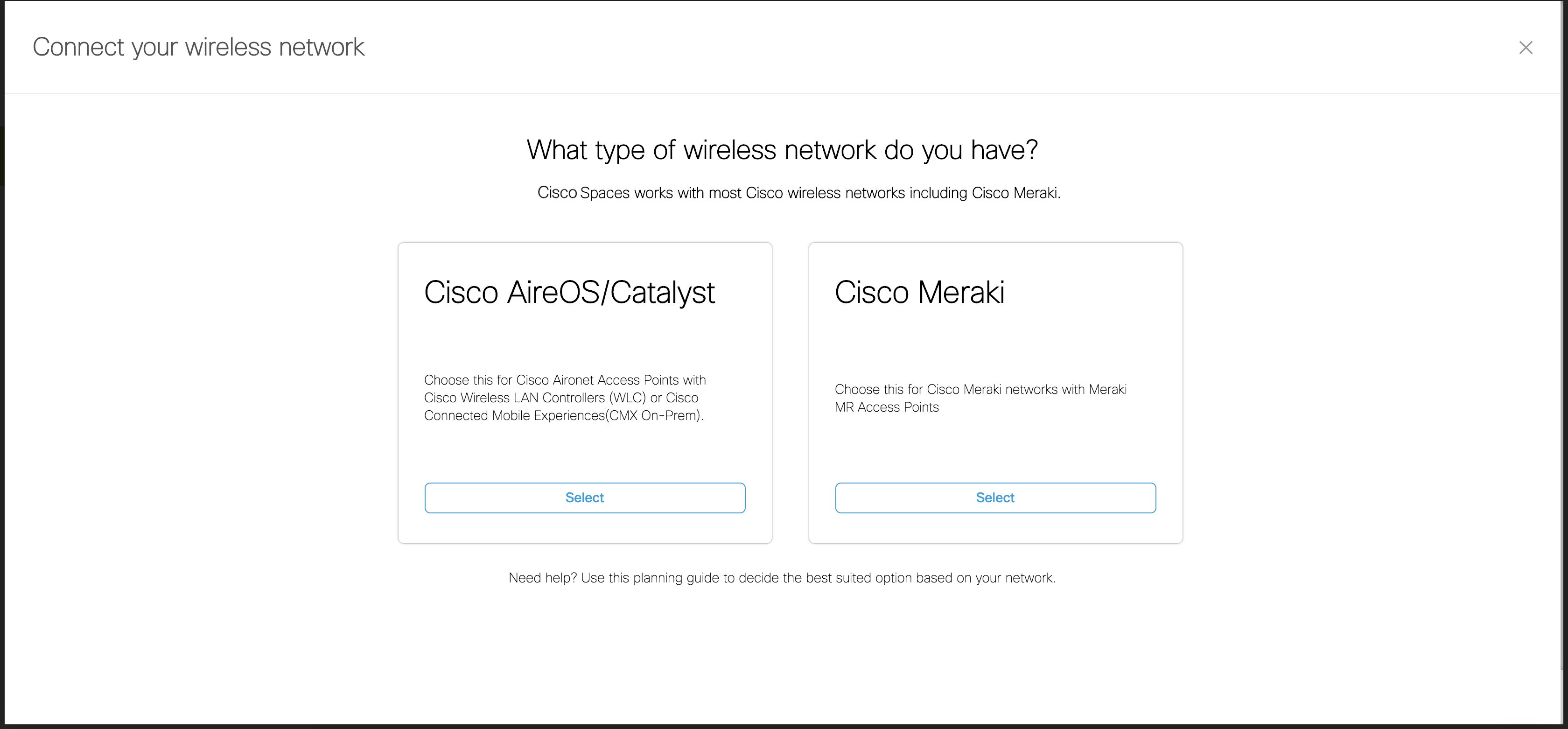
Click on “Get Started” button and Select “Cisco AirOS/Catalyst”
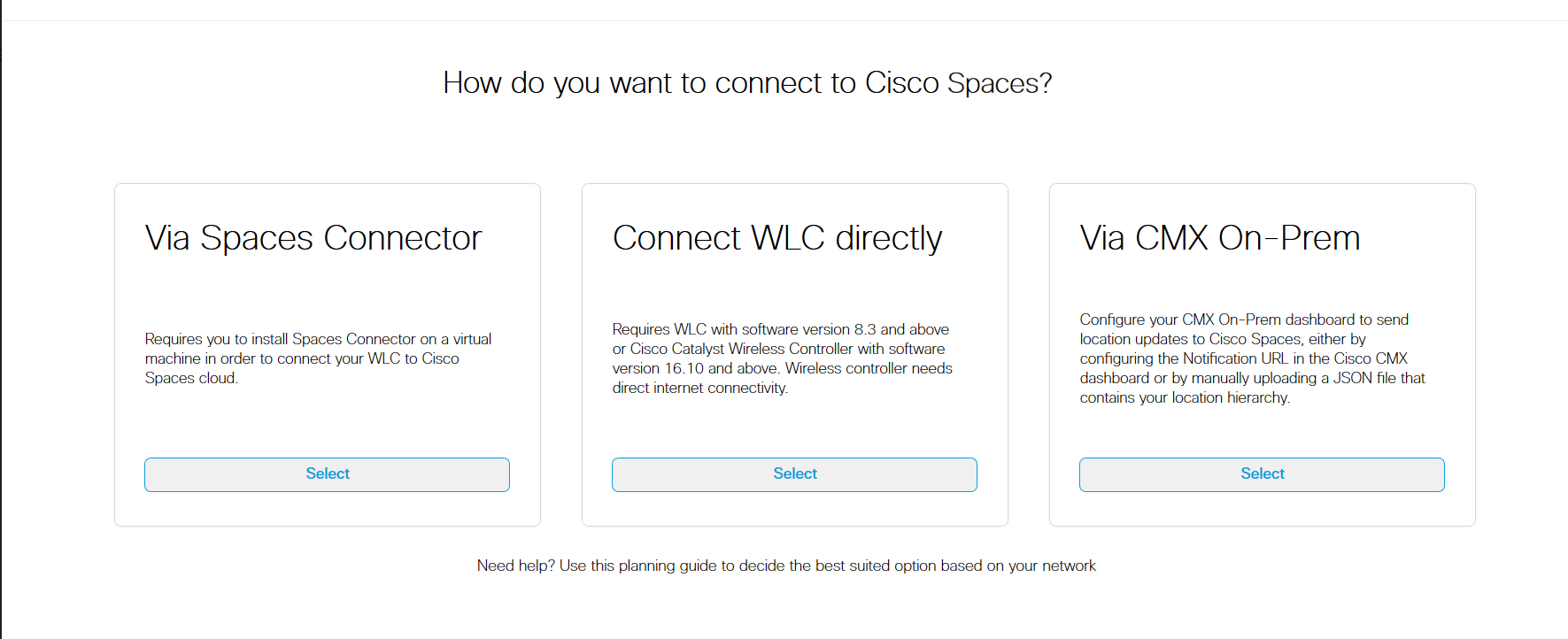
Select “Connect WLC directly” then Select “Customize Setup” button
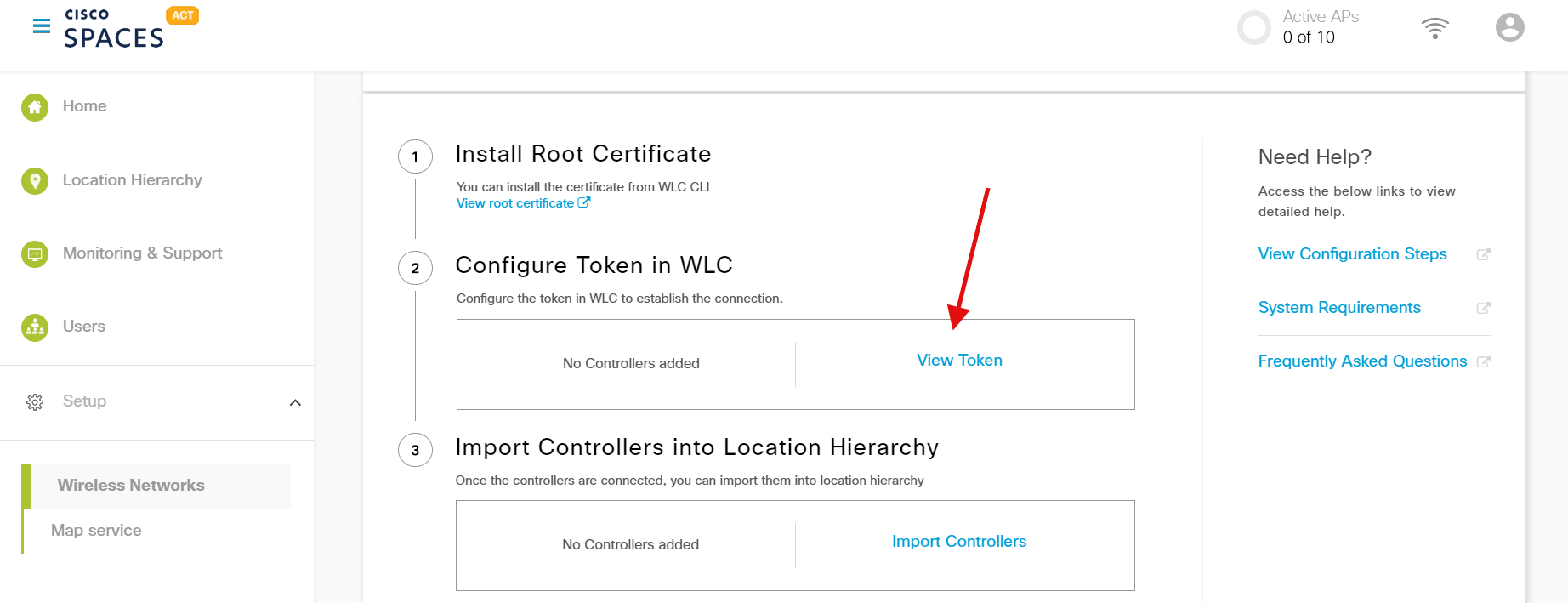
Go to Customized Setup page step 2 “Configure Token in WLC”, click on “View Token”
Click on “Cloud Services”

In the “Port” section, enter 443

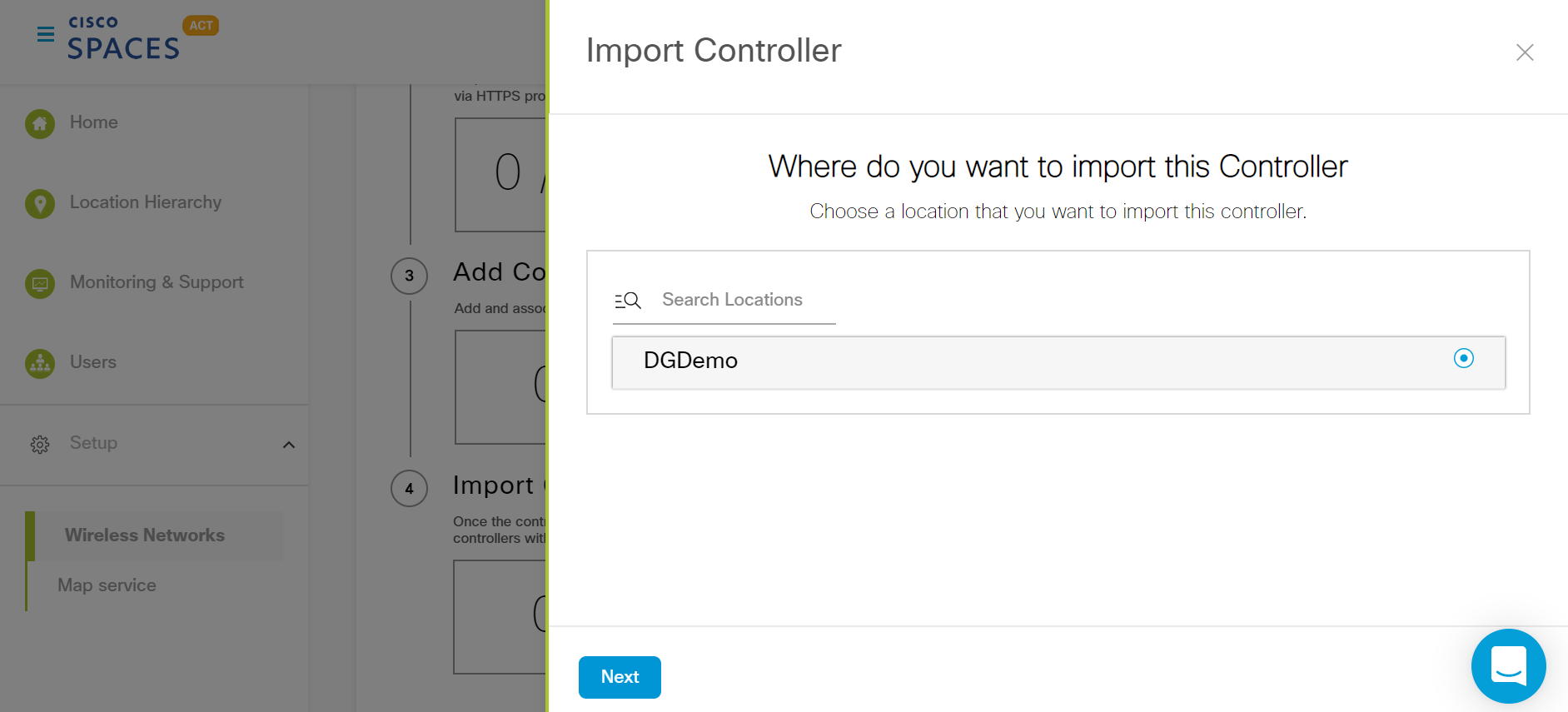
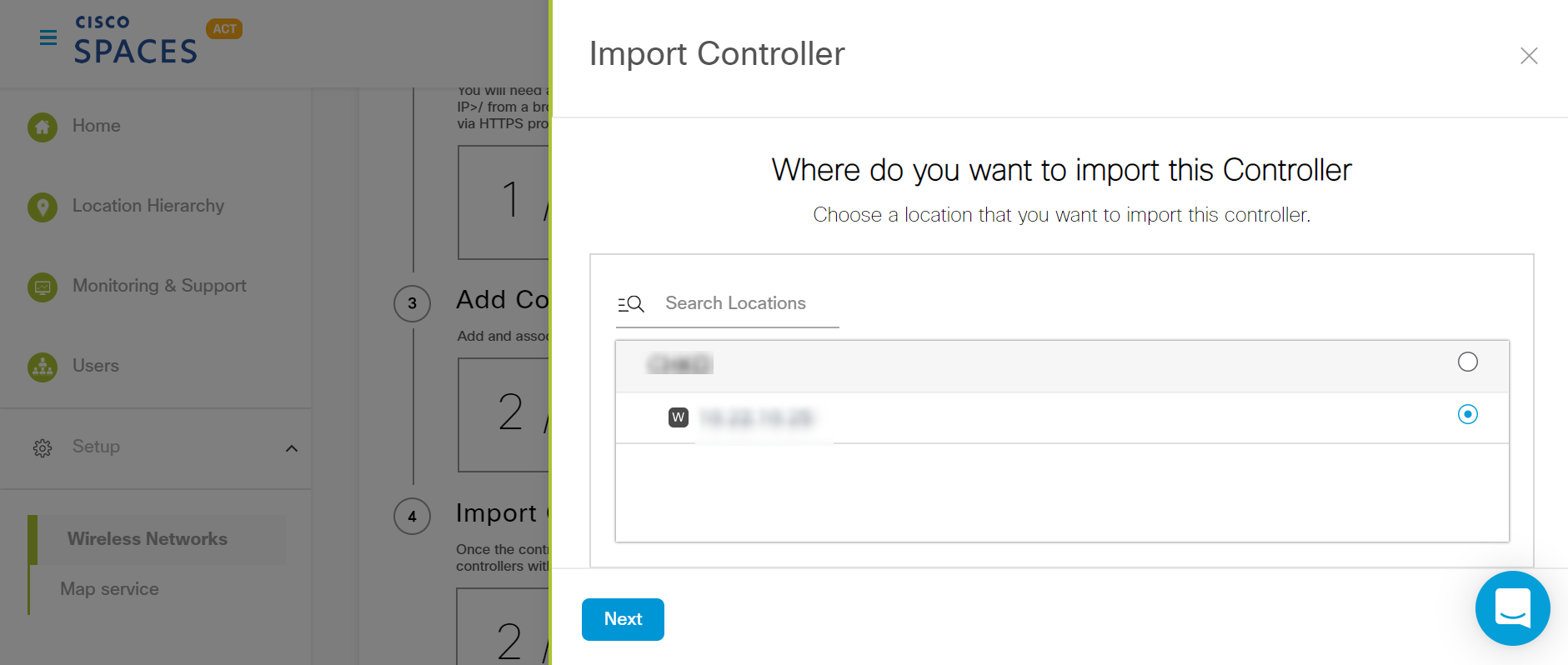
Choose the location where you want to import controllers and click “Next”. (If importing controllers for the first time, you will see the default location i.e. your Cisco Spaces account name. if not, you will also see the controllers you’ve imported earlier)

Review the locations auto discovered by Cisco Spaces.
- If the auto discovered locations are as per your business locations (Based on AP naming convention), then Select All/specific locations you want to import and click “Finish”.
- If the auto discovered locations are NOT as per your business locations (Based on AP naming convention), then uncheck the Select ALL and click “Finish”. (All your APs now will be imported under single location called “Unconfigured”. You can organize/configure locations in the Location Hierarchy referring the “Location Hierarchy Setup” section on this guide)
If you want to add additional controllers, click on “No, Continue with Setup” button.
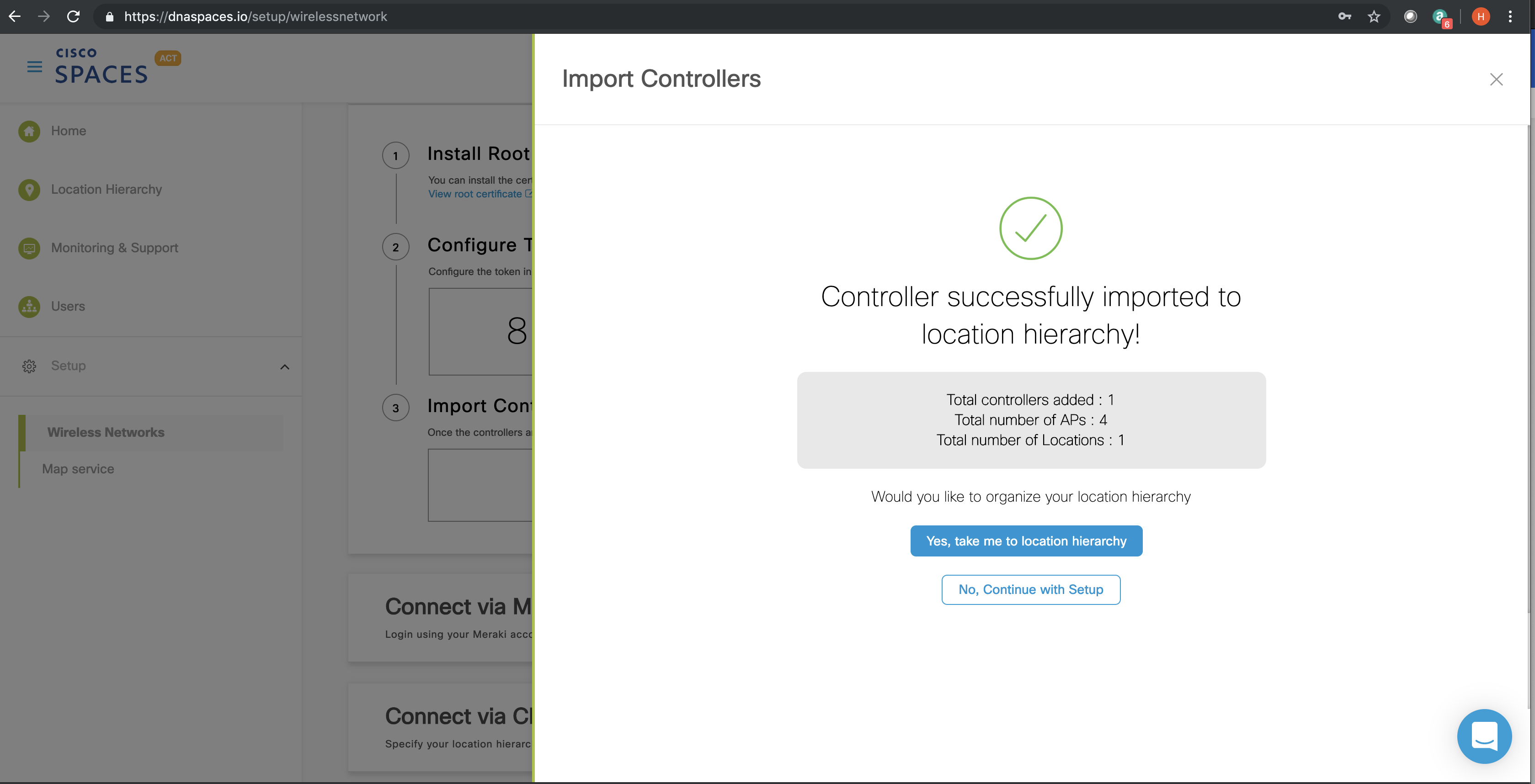
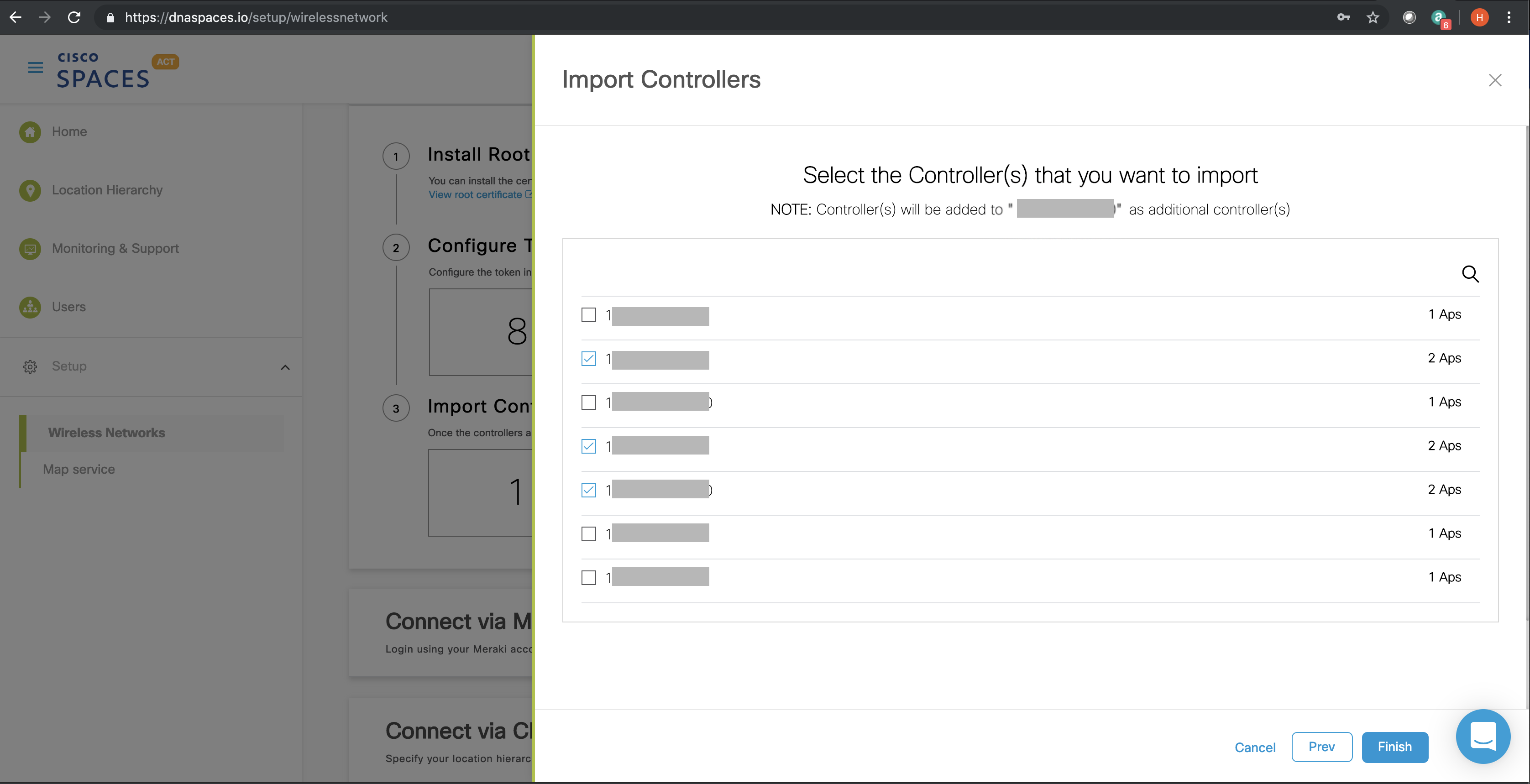
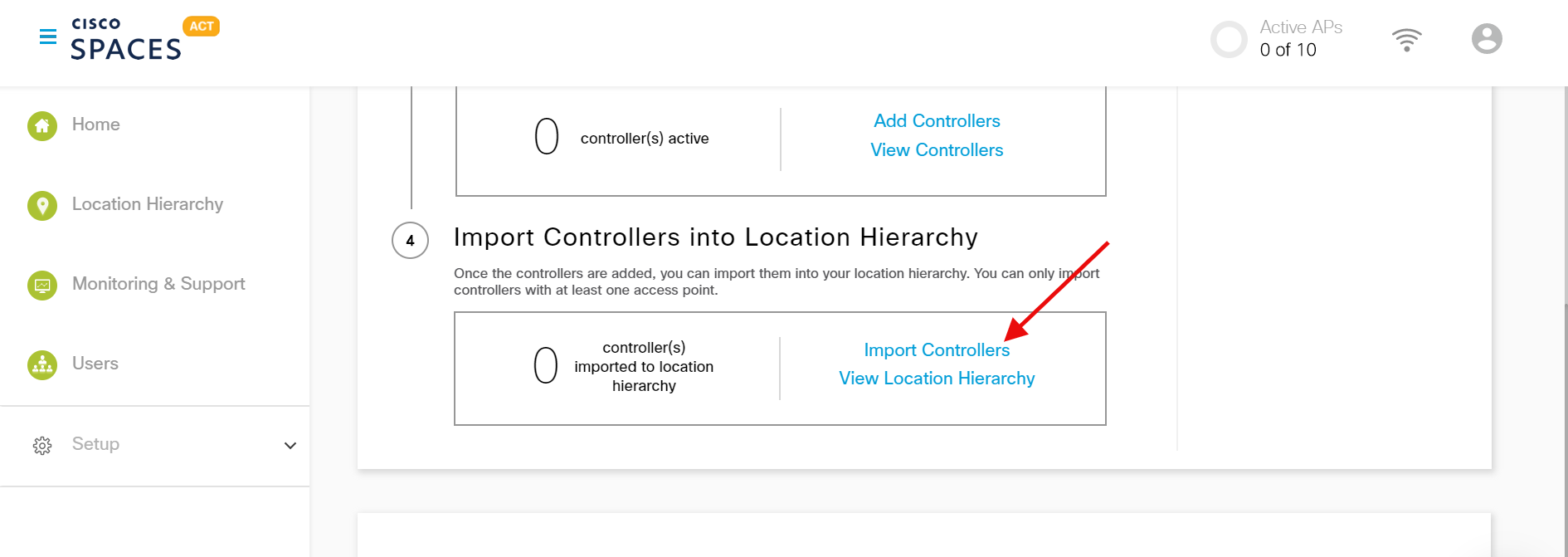
- Click on “Import Controllers” in the Customized Setup page step 4
- Select the Primary controller and click “Next”
- Select all the controllers you want import and click “Finish”