Install WLC Root Certificate (DigiCert CA)
To import the DigiCert CA root certificate into WLC, follow the steps below:
To view the appropriate root certificate, go to the link: https://global-root-ca.chain-demos.digicert.com/info/index.html
Note: If you try to connect your WLC to Cisco Spaces using a root certificate not issued by DigiCert CA, you will see an error stating, “https: SSL certificate problem: unable to get local issuer certificate”. To avoid getting the above error, you need to import the DigiCert CA root certificate to connect successfully to Cisco Spaces.
Copy the root certificate content to any text editor and save the file with a .cer extension e.g. {your_filename}.cer.
Copy the {your_filename}.cer file to the default directory on your TFTP.
Log in to the WLC CLI and execute the following commands:
- transfer download datatype cmx-serv-ca-cert
- transfer download mode tftp
- transfer download filename {your_filename}.cer
- transfer download serverip {your_tftp_server_ip}
- transfer download start
- Type Y to start the upload.
After the new root certificate has been uploaded successfully, execute the following commands to restart your CMX Cloud Services:
- config cloud-services cmx disable
- config cloud-services cmx enable
Configure Cloud Service URL in WLC
In the Cisco Spaces dashboard, click on Setup > Wireless Networks on the left navigation
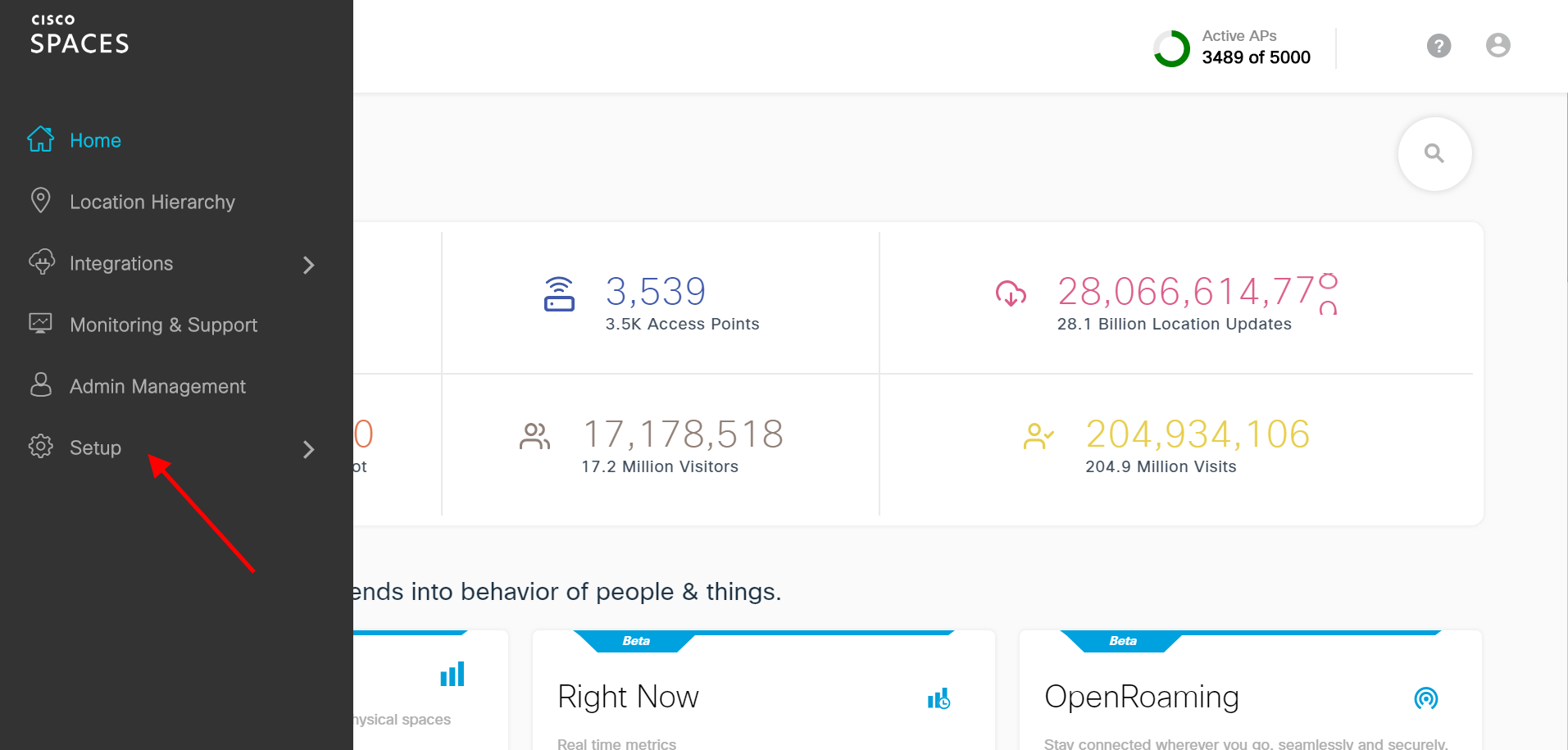
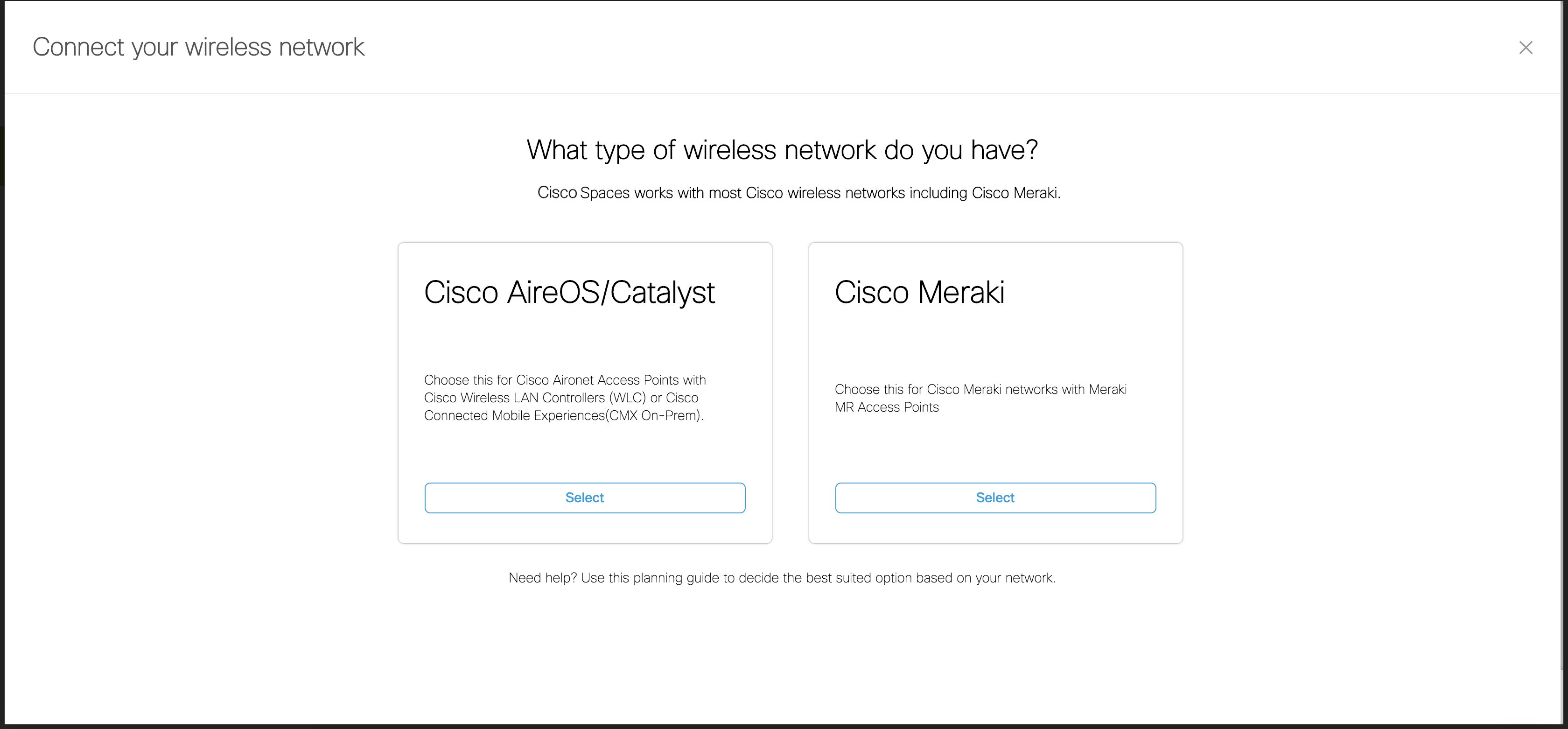
Click on “Get Started” button and Select “Cisco AirOS/Catalyst”
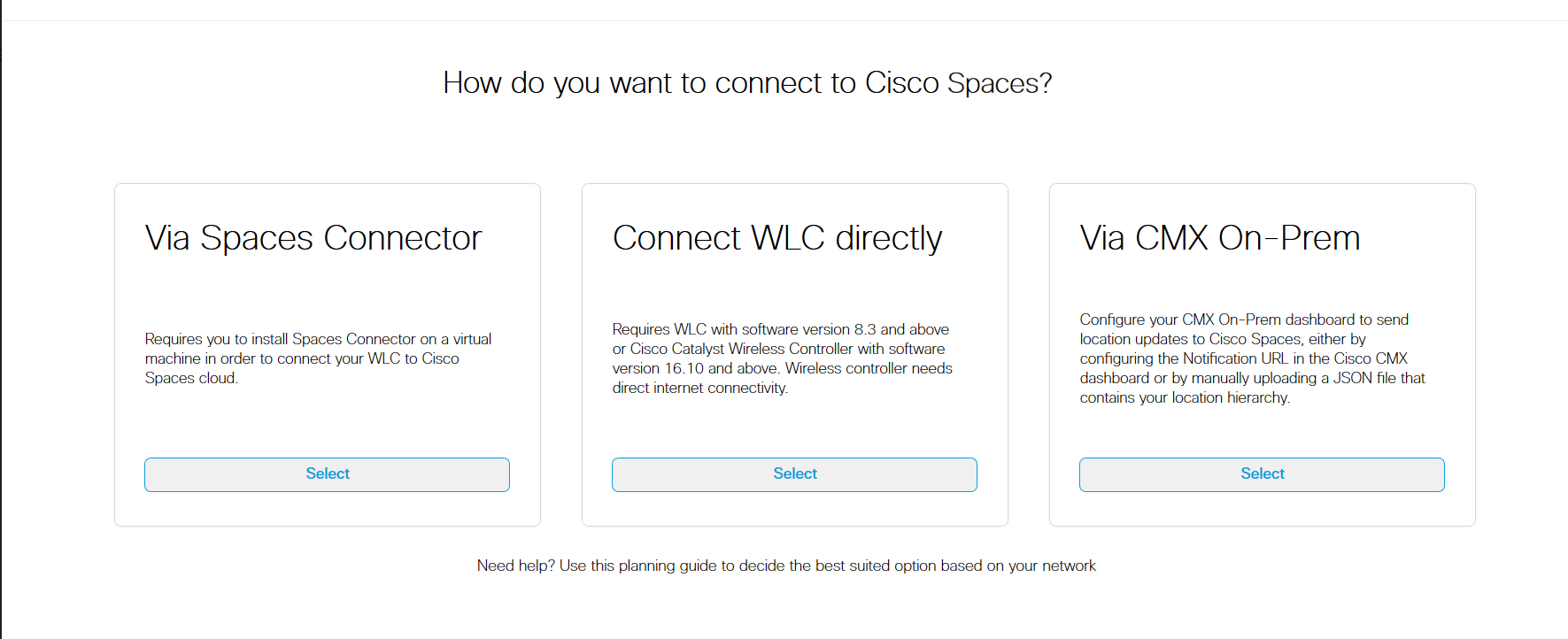
Select “Connect WLC directly” then Select “Customize Setup” button
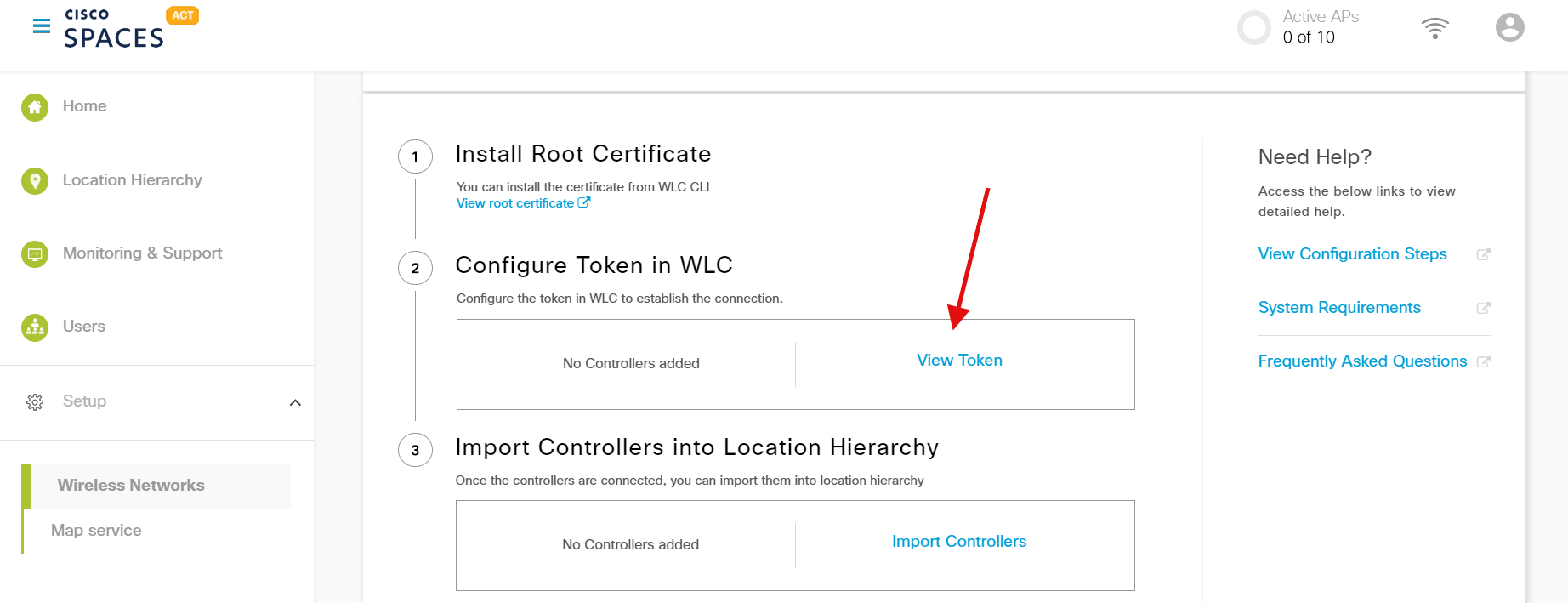
Go to Customized Setup page step 2 “Configure Token in WLC”, click on “View Token”
Login to your WLC account
Go to “Management”
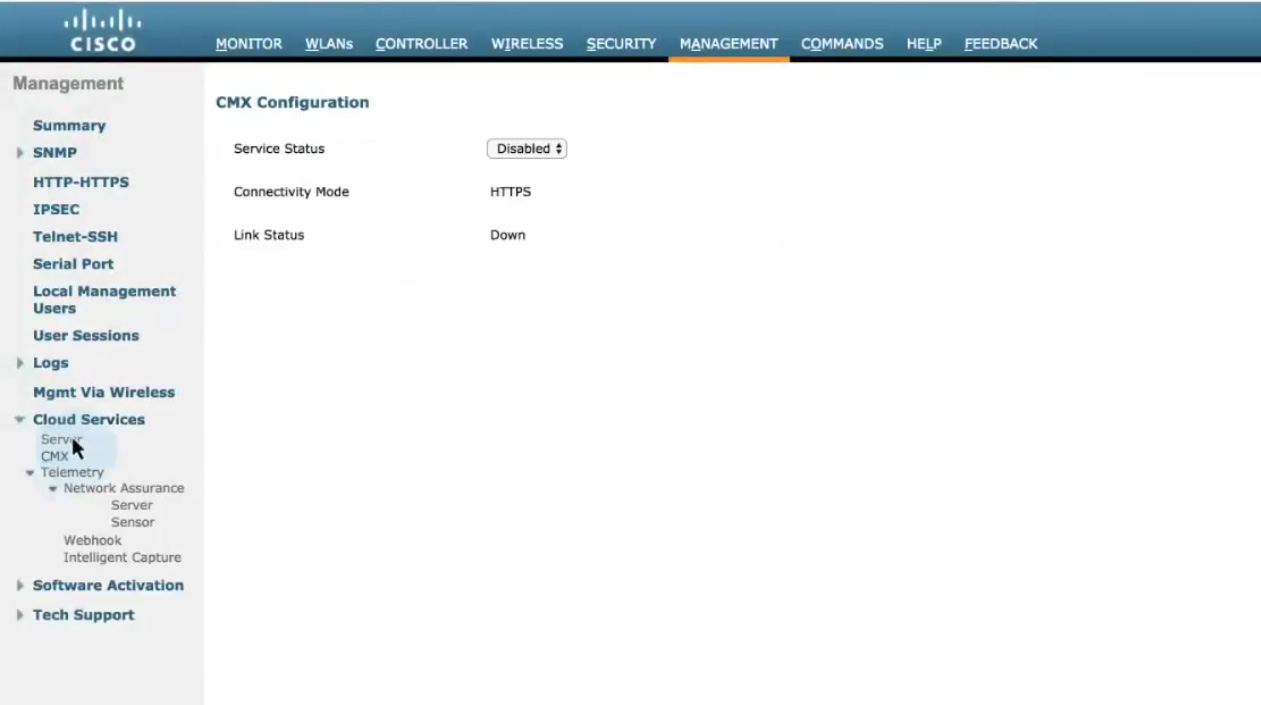
Click on “Cloud Services” on the left navigation
Click on “Server” under “Cloud Services” on the left navigation
Enter your Service URL and ID-token. Get the service URL and Token from the Cisco Spaces dashboard as shown in the Step 4 above.
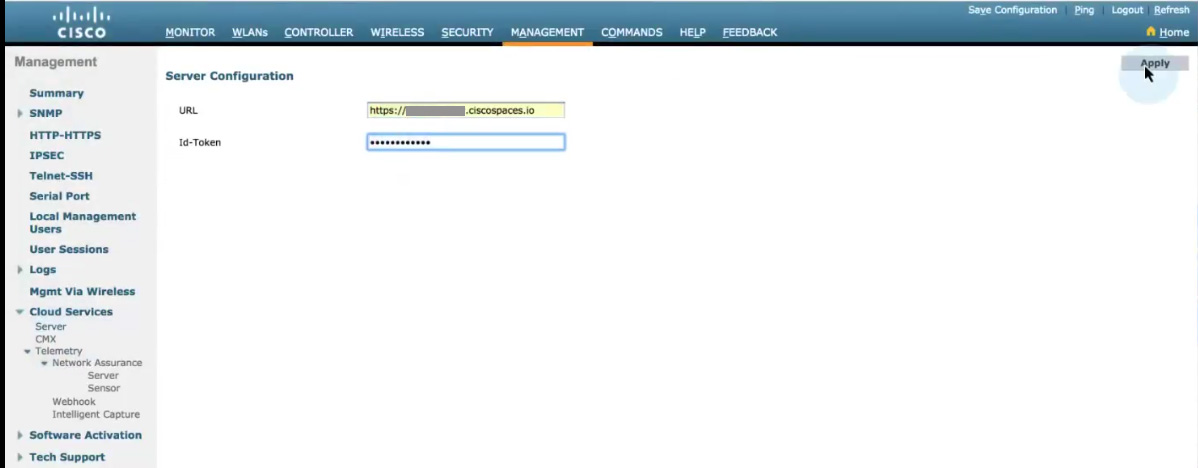
Click on “Apply” button on the top right corner of the page
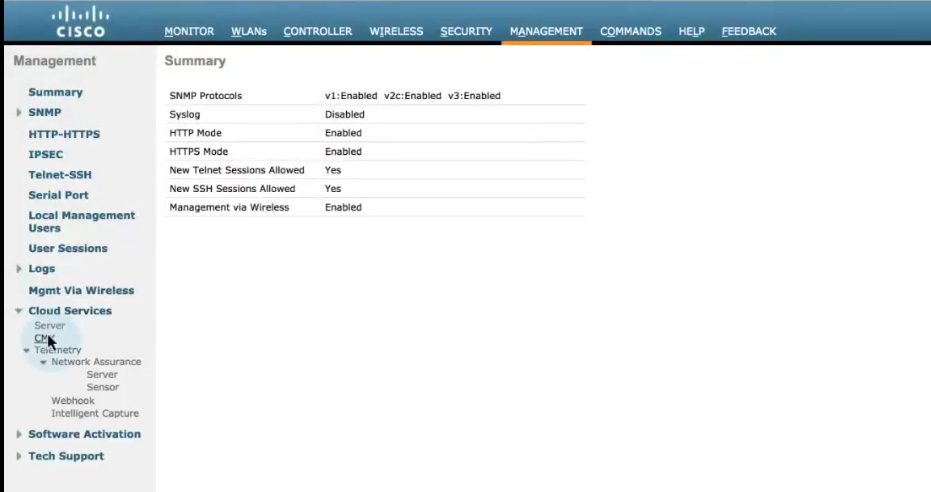
Click on “CMX” under “Cloud Services”
Click on “Server Status” dropdown and select “Enable”
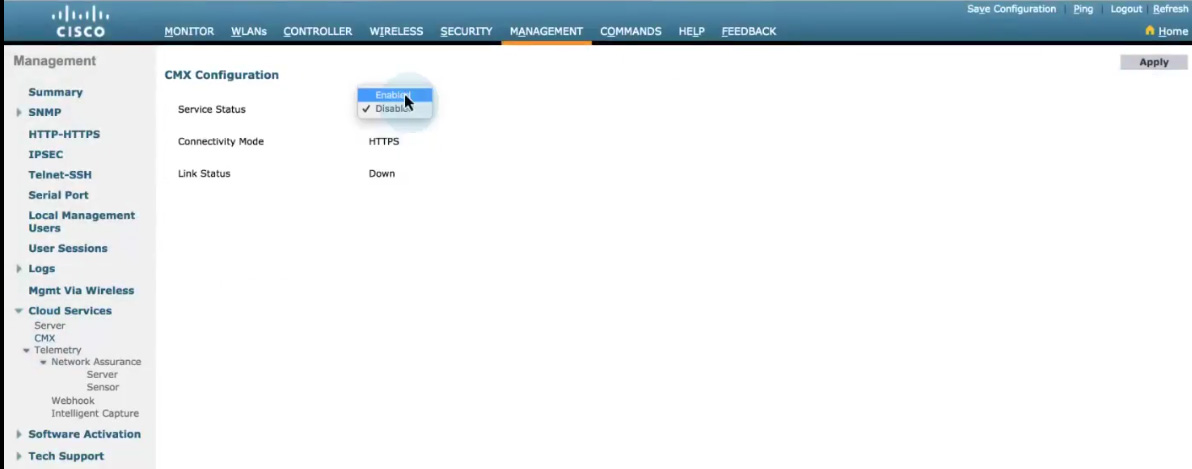
Click on “Apply” button on the top right corner of the page